
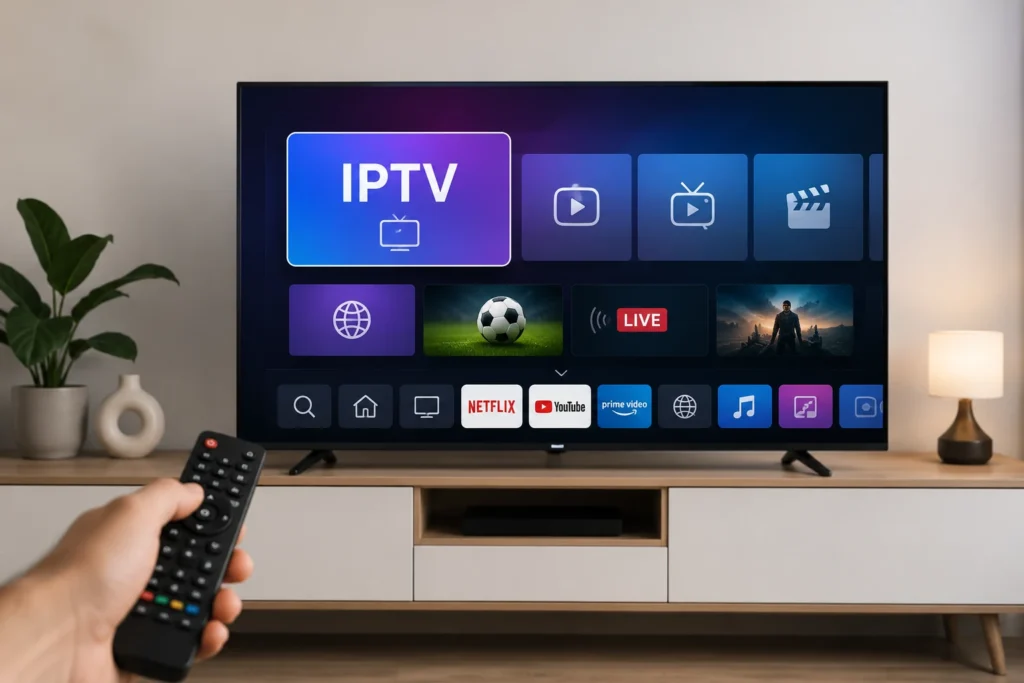
Setting up IPTV for LG Smart TV is a convenient way to watch live television, sports, movies and series directly on your television without needing a traditional satellite receiver.
Most modern LG Smart TVs use the webOS operating system, which allows users to download compatible media players from the LG Apps section or Content Store. Once a suitable player is installed, you can add the authorised login details provided by your IPTV service and begin streaming.
This guide explains how to install IPTV on an LG Smart TV in South Africa, configure your account and solve common setup problems.
Can You Install IPTV on an LG Smart TV?
Yes, IPTV can be used on many LG Smart TV models through a compatible player available in the LG Content Store.
The exact apps available on your television may depend on:
- Your LG TV model
- The installed webOS version
- The country or region selected on the television
- The apps currently supported by LG
- Available storage space
- Your internet connection
The IPTV player does not normally include channels by itself. It acts as a media player where you enter the authorised playlist or login information supplied by your service provider.
New users can first read our beginner’s guide to IPTV in South Africa to understand how internet television works.
What You Need Before Starting
Before installing IPTV for LG Smart TV, prepare the following:
- A compatible LG Smart TV with webOS
- A stable Wi-Fi or Ethernet connection
- Access to the LG Apps section or Content Store
- A compatible IPTV player
- Authorised IPTV login details
- Your M3U playlist URL or Xtream Codes login
- A valid email address if the selected player requires registration
Your provider may send the subscription information in different formats. The most common formats are an M3U playlist link or a server address with a username and password.
Keep these details private and do not share them publicly.
How to Install IPTV on LG webOS Smart TV
To install IPTV on an LG webOS Smart TV, connect the TV to the internet, open the LG Content Store or Apps section, install a compatible IPTV player, then add the authorised M3U playlist or Xtream Codes login provided by your service.
Step 1: Connect Your LG Smart TV to the Internet
Your television must be connected to the internet before you can download an app or stream content.
- Press the Settings button on your LG remote.
- Open All Settings.
- Select Network or Connection.
- Choose Wi-Fi Connection or Wired Ethernet.
- Connect the television to your home network.
- Open another streaming app to confirm that the internet is working.
For the most stable IPTV experience, an Ethernet cable is generally better than Wi-Fi because it creates a direct connection between the television and router.
When Ethernet is not available, use a strong Wi-Fi signal and keep the television reasonably close to the router.
Step 2: Open the LG Content Store or Apps Section
The menu name may be slightly different depending on the webOS version installed on your television.
On newer LG televisions
- Press the Home button on the remote.
- Select Apps from the home menu.
- Open the search option.
On some older LG televisions
- Press the Home button.
- Open LG Content Store.
- Select the search icon.
You may need to sign in to an LG account and accept the television’s user agreements before installing an app.
Step 3: Search for a Compatible IPTV Player
Use the search icon inside the Apps section or LG Content Store and enter terms such as:
- IPTV player
- M3U player
- Media player
- Live TV player
Select a player that supports the login format provided by your IPTV service.
Before installing the app, check:
- Whether it supports your LG TV model
- Whether it supports M3U playlists
- Whether it supports Xtream Codes login
- Whether it includes an electronic programme guide
- Whether activation or payment is required
- Whether the app is available in South Africa
App availability can change between LG models, webOS versions and regions. An app visible on one LG television may not appear on another model.
Step 4: Install and Open the Player
- Select the app from the search results.
- Choose Install.
- Wait for the installation to complete.
- Select Launch or return to the Home menu.
- Open the newly installed player.
Some players will immediately display a login screen. Others may show a device ID, MAC address or activation code.
Follow the instructions displayed by the selected app.
Step 5: Add Your IPTV Login Details
The setup process will depend on the login method supported by your player.
Method 1: Xtream Codes Login
When the player supports Xtream Codes, you will normally need:
- A profile or playlist name
- Username
- Password
- Server or portal URL
Enter the details exactly as they were provided. Avoid adding spaces before or after the username, password or server address.
After entering the information, select Add User, Login or Connect.
The player should begin downloading the available categories and programme information.
Method 2: M3U Playlist
- Select Add Playlist.
- Choose the M3U URL option.
- Enter a name for the playlist.
- Paste the complete M3U link.
- Save the playlist.
- Wait for the content to load.
An M3U link can be long. Check every character carefully when entering it with the television remote.
When possible, use the app’s website or mobile activation page to enter the link more easily.
Step 6: Load the Channels and Test Playback
After the account has been added, the player may display sections such as:
- Live TV
- Movies
- Series
- Favourites
- TV Guide
- Recently Watched
Open one live channel and allow it to play for several minutes.
Test more than one category to confirm that:
- The picture loads correctly
- The sound is working
- Channel changes are responsive
- Movies and series open correctly
- The programme guide loads
- The stream remains stable
It is better to test the service on the same television and internet connection you plan to use regularly.
You can review our complete IPTV setup guide for additional device instructions.
Best Internet Connection for IPTV on LG Smart TV
Streaming quality depends on more than the maximum internet speed shown by your internet package. The stability of the connection is also important.
Buffering may occur when:
- The Wi-Fi signal is weak
- Several devices are downloading at the same time
- The router is far from the television
- The television is connected to a crowded Wi-Fi network
- The device has not been restarted for a long time
- The stream quality is too high for the connection
- The internet connection becomes unstable during peak hours
For HD or 4K content, use a stable fibre, LTE or 5G connection with enough available bandwidth for all devices in the home.
Read our guide about internet speed for 4K streaming before selecting the highest video quality.
How to Reduce Buffering on LG Smart TV
- Restart the LG television.
- Restart the router.
- Test a different channel.
- Stop downloads on other household devices.
- Move the router closer to the television.
- Connect the television with an Ethernet cable.
- Reduce the video quality temporarily.
- Close unused apps.
- Check for a webOS software update.
- Contact your provider when the problem affects every channel.
Do not change many settings at the same time. Testing one change at a time makes it easier to identify the cause.
Our IPTV buffering fix checklist provides more detailed troubleshooting instructions.
What to Do When the IPTV App Is Not Available
A specific IPTV player may not appear in the LG Content Store because it is not supported on your model or in your selected region.
- Confirm that the television is connected to the internet.
- Check the country selected in the LG service settings.
- Update the television software.
- Sign in to your LG account.
- Accept any pending user agreements.
- Search for another compatible media player.
- Remove unused apps when the television has limited storage.
- Restart the television and search again.
Avoid changing the television’s region only to bypass app restrictions. A different region can affect other installed apps, account settings and available services.
When no suitable app is supported, you can connect a compatible Android TV device, Google TV device or Fire TV device through HDMI.
IPTV App Installed but Channels Are Not Loading
When the app opens but the content does not load, check the subscription information first.
Common causes include:
- Incorrect username
- Incorrect password
- Incomplete server address
- An expired subscription
- An incorrect M3U playlist
- Extra spaces in the login fields
- Temporary internet problems
- The app needing a playlist refresh
Delete the saved profile and enter the information again carefully.
You can also test the same authorised login on another supported device. When it works on another device, the issue may be related to the LG app or television settings.
How to Improve the LG Smart TV Streaming Experience
Use Ethernet When Possible
A wired network connection is usually more consistent than Wi-Fi, especially for live sports and high-resolution streams.
Keep the Television Updated
Check regularly for LG webOS software updates. Updates may improve performance, security and compatibility with installed apps.
Remove Unused Apps
LG televisions have limited internal storage. Removing apps you no longer use can leave more space for updates and app data.
Restart the Television and Router
A restart clears temporary connection problems and refreshes the network connection.
Create a Favourites List
Add your most-watched channels to the favourites section. This makes navigation easier and reduces the time spent searching through categories.
Test Before Choosing a Longer Plan
A short test allows you to confirm compatibility with your LG television, internet connection and preferred content before selecting a longer subscription.
Frequently Asked Questions
Can I install IPTV on any LG Smart TV?
Many LG Smart TVs support IPTV players through the Apps section or LG Content Store. Compatibility depends on the television model, webOS version and selected region.
Do IPTV players include channels?
Usually, no. The player is only an application used to organise and play content. You must add authorised subscription or playlist details separately.
Can I use an M3U playlist on an LG Smart TV?
Yes, when the selected player supports M3U playlist URLs. Enter the complete link provided by your authorised IPTV service.
Can I use Xtream Codes on an LG television?
Yes, some compatible players allow login with a server address, username and password. The available login methods depend on the app.
Why can I not find a specific app in the LG Content Store?
The app may not support your television model, webOS version or region. Search for another compatible player or use an external streaming device.
Do I need an external TV box?
Not necessarily. When your LG television supports a suitable player, IPTV can run directly on the television. An external device is useful when the required app is unavailable or the television is too old.
Why does IPTV buffer on my LG Smart TV?
Buffering can be caused by weak Wi-Fi, limited household bandwidth, background downloads, an overloaded device or a temporary service issue. Test Ethernet and restart the television and router before changing advanced settings.
Can I install IPTV on LG webOS TV?
Yes. Many LG webOS TVs support compatible IPTV players through the LG Content Store or Apps section. Availability depends on model, webOS version and region.
Final Thoughts
Installing IPTV for LG Smart TV is straightforward when the television supports a compatible webOS player.
Connect the television to a stable network, install a suitable player from the LG Content Store, enter your authorised subscription details and test the service before regular use.
For better results, use Ethernet whenever possible, keep the television updated and choose a streaming quality that matches your connection.
Visit Prime IPTV SA to review device compatibility, setup support and available IPTV options for viewers in South Africa.