
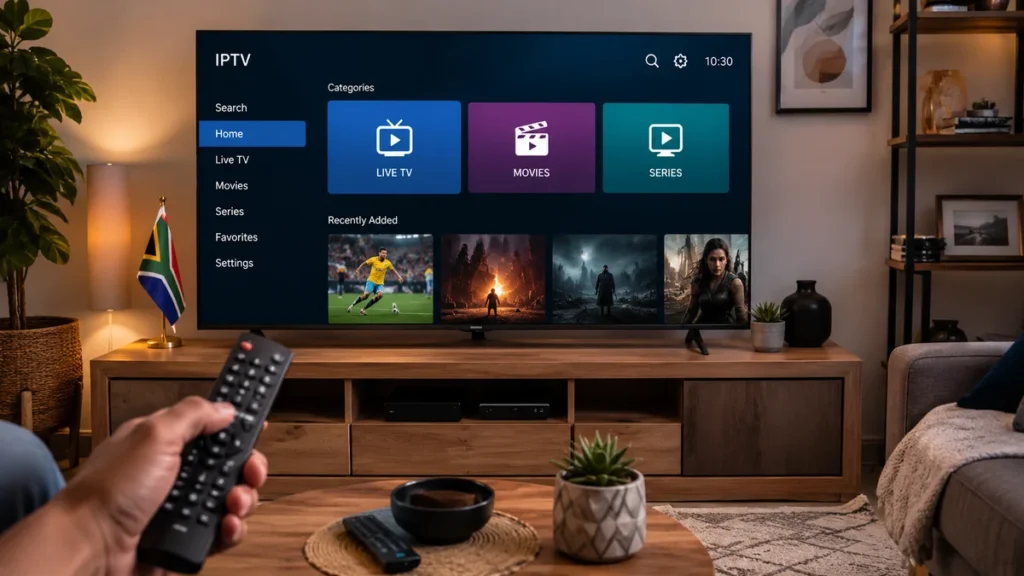
Setting up IPTV for Hisense Smart TV allows you to watch authorised live television, movies and series directly on your television using an internet connection.
Hisense televisions can use different operating systems depending on the model. Some models use VIDAA, while others may use Google TV or Android TV. The correct setup method therefore depends on the software installed on your television and the applications available in its app store.
This guide explains how to identify your Hisense TV system, install a compatible IPTV player, add your authorised login details and solve common streaming problems in South Africa.
Can You Install IPTV on a Hisense Smart TV?
Yes. Many Hisense Smart TVs can run a compatible IPTV player downloaded from the television’s app store.
The exact player available to you may depend on:
- Your Hisense television model
- The installed operating system
- Your software version
- The region selected on the television
- The applications supported by the app store
- The login format supplied by your IPTV provider
An IPTV player normally does not include television channels by itself. It is an application used to open an authorised playlist or subscription supplied separately by a service provider.
Readers who are new to internet television can first read our beginner’s guide to IPTV in South Africa.
Check Which Operating System Your Hisense TV Uses
Before downloading an application, identify the operating system installed on your television.
Common Hisense Smart TV systems include:
- VIDAA
- Google TV
- Android TV
You can normally find this information in the Settings, Support, About or Device Preferences section of the television.
You can also check the television packaging, product page or model specifications.
Hisense VIDAA TV
A VIDAA television normally has a VIDAA-style home screen and its own application store.
Applications available on VIDAA may differ according to the country, television model and software version.
Hisense Google TV or Android TV
A Google TV or Android TV model normally allows you to download compatible applications through Google Play.
If your Hisense television uses Android TV or Google TV, you can also consult our complete IPTV for Android TV guide.
What You Need Before Starting
Prepare the following before beginning the setup:
- A compatible Hisense Smart TV
- A stable Wi-Fi or Ethernet connection
- Access to the television’s app store
- A compatible IPTV player
- Authorised IPTV subscription details
- An M3U playlist or supported account login
- Enough television storage for the application
Your IPTV provider may send a username, password, server address, portal address or M3U playlist URL.
Keep these details private. Do not publish them online or share them with unauthorised users.
Step 1: Connect the Hisense TV to the Internet
The television must be connected to the internet before you can download applications or stream video.
- Press the Home or Settings button on the remote.
- Open Network, Connection or Wi-Fi settings.
- Select your home Wi-Fi network.
- Enter the Wi-Fi password.
- Wait for the connection to complete.
- Open another streaming application to test the connection.
When possible, connect the television directly to the router with an Ethernet cable. A wired connection can be more stable than Wi-Fi, particularly during live sport and high-resolution streaming.
Method 1: How to Install IPTV on Hisense VIDAA TV
To install IPTV on a Hisense VIDAA TV, open the VIDAA App Store, search for a compatible IPTV or M3U player, install the app, and then add the authorised login or playlist details supplied by your provider.
Use this method when your Hisense television runs the VIDAA operating system.
Open the VIDAA App Store
- Press the Home button on the Hisense remote.
- Open the Apps section.
- Select the App Store.
- Use the search function.
Search using general terms such as:
- IPTV player
- M3U player
- Media player
- Live TV player
Do not worry when a specific player recommended online does not appear. Application availability can vary between models, software versions and regions.
Install a Compatible Player
Before installing the application, check whether it supports the login format provided by your service.
Useful features may include:
- M3U playlist support
- Username and password login
- Server or portal login
- Electronic programme guide support
- Live television categories
- Movies and series sections
- Favourites
Select the application, choose Install and wait for the process to finish.
Method 2: Set Up IPTV on Hisense Google TV
Use this method when your Hisense television displays the Google TV interface.
- Press the Home button.
- Open the Apps section.
- Select Search for Apps.
- Enter IPTV player or M3U player.
- Select a compatible application.
- Choose Install.
- Open the application after installation.
You may need to sign in to a Google account before downloading applications.
Review the application information carefully and confirm that it supports your login method before paying for a premium version.
Method 3: Set Up IPTV on Hisense Android TV
On an Android TV model:
- Open the Google Play Store.
- Select the search icon.
- Search for a compatible IPTV player.
- Select Install.
- Wait for the download to finish.
- Open the application.
Keep some free storage available for application updates, temporary files and programme guide data.
Add Your IPTV Login Details
Once the player is installed, add the authorised information supplied by your provider.
The exact options depend on the application.
Option 1: Username, Password and Server Address
The application may request:
- A profile name
- Username
- Password
- Server or portal URL
Enter every detail exactly as supplied.
Avoid adding spaces before or after the username, password or server address. One incorrect character can prevent the account from loading.
Select Login, Add User or Connect when finished.
Option 2: M3U Playlist URL
When your provider supplies an M3U link:
- Select Add Playlist.
- Choose M3U URL or Remote Playlist.
- Enter a name for the playlist.
- Paste or type the complete M3U link.
- Save the playlist.
- Wait for the categories to load.
M3U links are often long. Copying and pasting the link through a supported mobile companion application may be easier than entering it with the remote.
Test the IPTV Service
After the account loads, open several sections to confirm that the setup works correctly.
Test:
- One live television channel
- A sports stream
- A movie
- A series episode
- The electronic programme guide
- The favourites function
Allow a live channel to play for several minutes instead of testing only whether it opens.
Check that the picture, sound, programme guide and channel changes work correctly.
Our main IPTV setup guide contains additional device instructions.
Best Internet Settings for Hisense IPTV
A stable connection is more important than a single high speed-test result.
For better performance:
- Use Ethernet when possible.
- Use 5 GHz Wi-Fi when the router and television support it.
- Keep the router close to the television.
- Pause large downloads while streaming.
- Disconnect unused devices from the network.
- Restart the router when the connection becomes unstable.
- Select a video quality suitable for your connection.
View our guide to internet speed for 4K streaming before choosing the highest resolution.
How to Fix Buffering on a Hisense Smart TV
When the stream freezes, pauses or takes too long to open, test the following steps:
- Open a different channel.
- Close and reopen the IPTV player.
- Restart the Hisense television.
- Restart the internet router.
- Stop downloads on other devices.
- Move the router closer to the television.
- Test an Ethernet cable.
- Reduce the playback quality.
- Update the IPTV application.
- Check for a television software update.
Change one setting at a time and test playback again. This makes it easier to identify the cause.
Use our complete IPTV buffering troubleshooting guide for more detailed steps.
What to Do When the IPTV App Is Not Available
A specific IPTV player may not appear on your Hisense TV because it is unavailable for your model, operating system, region or software version.
Try the following:
- Confirm that the television is connected to the internet.
- Check for system updates.
- Restart the television.
- Sign in to the required VIDAA or Google account.
- Search using general terms instead of one application name.
- Remove unused applications when storage is limited.
- Choose another player that supports the same login method.
When no suitable player is available, connect an external Android TV, Google TV or Fire TV streaming device through HDMI.
Player Installed but Channels Are Not Loading
When the application opens but no content appears, check the login information first.
Common causes include:
- An incorrect username
- An incorrect password
- An incomplete server address
- An incorrect M3U playlist URL
- An expired subscription
- Extra spaces in the login fields
- A temporary internet problem
- A playlist that needs refreshing
Delete the saved profile and enter the details again carefully.
You can also test the authorised account on another compatible device. When it works elsewhere, the issue may be related to the Hisense application or television settings.
How to Improve IPTV Performance on Hisense TV
Keep the TV Software Updated
Software updates may improve application compatibility, security and system performance.
Remove Unused Applications
Smart televisions have limited internal storage. Removing unused applications can leave more space for updates and programme guide data.
Use a Wired Connection
Ethernet reduces the effect of weak Wi-Fi signals, distance and wireless interference.
Restart the Television Regularly
A restart clears temporary processes and refreshes the network connection.
Create a Favourites List
Saving your preferred channels makes navigation faster and reduces the time spent searching through categories.
Test Before Choosing a Longer Plan
Ready to Choose the Right IPTV Plan for Your Hisense TV?
If your Hisense Smart TV, internet connection and IPTV player are working correctly, compare the available IPTV plans and choose the option that best matches your setup, viewing needs and budget.
A short test helps confirm compatibility with your television, application, network and preferred content before selecting a longer subscription.
Frequently Asked Questions
Can IPTV work on every Hisense Smart TV?
Many Hisense Smart TVs support compatible media players, but application availability depends on the model, operating system, software version and region.
Does a Hisense IPTV player include channels?
Normally, no. The application is only a media player. You must add authorised subscription or playlist details separately.
Can I use an M3U link on Hisense VIDAA?
Yes, when a compatible VIDAA application supports remote M3U playlists.
Can I install Android applications on VIDAA?
VIDAA and Android TV are different operating systems. An Android application cannot normally be installed directly on a VIDAA television unless an official VIDAA version is available.
Can I use an external streaming device?
Yes. An Android TV, Google TV or Fire TV device connected through HDMI can provide access to additional compatible applications.
Why does IPTV keep buffering on my Hisense TV?
Buffering can be caused by weak Wi-Fi, background downloads, limited bandwidth, high video quality, application performance or a temporary stream problem.
Is Ethernet better than Wi-Fi?
Ethernet usually provides a more consistent connection because the television is connected directly to the router.
Final Thoughts
Your Hisense Smart TV can be a great choice for IPTV when the device, internet connection and player are configured correctly.
Before choosing a longer subscription, make sure your TV is connected to a stable network, your preferred IPTV app is working properly and your setup can handle the picture quality you want.
If everything is ready, the next step is simple: compare the available IPTV plans and choose the option that best matches your Hisense TV, viewing needs and budget.