
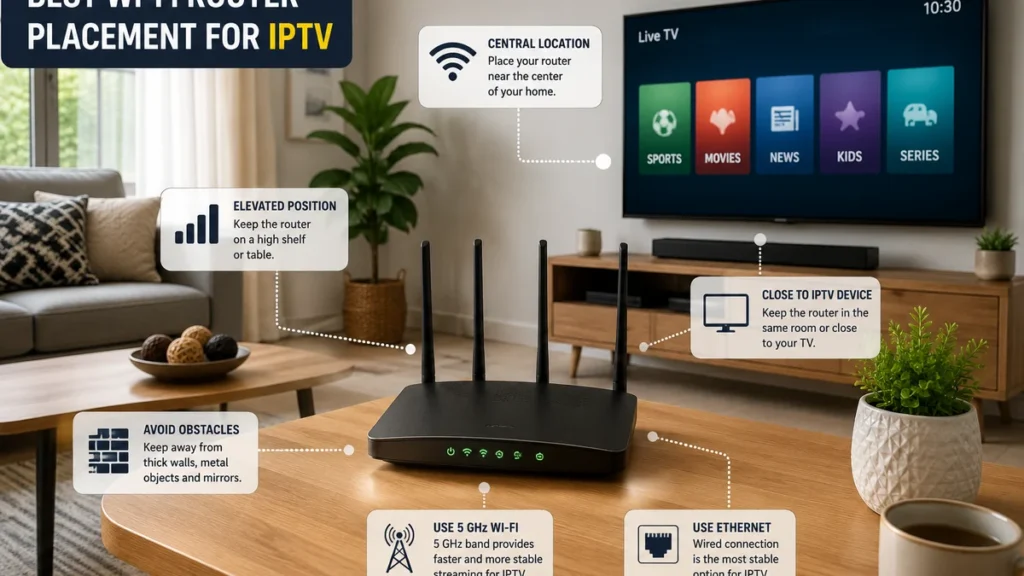
Choosing the best Wi-Fi router placement for IPTV can make a noticeable difference to streaming stability, picture quality and loading time.
Many viewers assume that buffering always means their internet package is too slow. However, the position of the router, the distance from the television and obstacles inside the home can also weaken the wireless connection.
This guide explains where to position your router, which Wi-Fi band to use and how South African households can improve IPTV performance without immediately buying a faster internet package.
Why Router Placement Matters for IPTV
Your internet connection may be fast at the router but much weaker by the time the signal reaches your Smart TV, streaming box, phone or tablet.
Wireless signals can lose strength because of:
- Distance between the router and streaming device
- Thick walls and ceilings
- Metal furniture or appliances
- Closed cabinets
- Other nearby Wi-Fi networks
- Electronic devices using similar frequencies
- Poor mesh or extender placement
A speed test performed next to the router may therefore show excellent results, while the television in another room receives a slower or unstable connection.
Before upgrading your internet plan, test the connection on the same device and in the same room where you normally watch IPTV.
Where Is the Best Place to Put a Wi-Fi Router?
For most homes, the router should be positioned in a central, elevated and open location.
A good router location should be:
- Close to the centre of the home
- Raised above floor level
- Visible rather than hidden
- Away from large metal objects
- Away from thick concrete walls when possible
- Reasonably close to the main streaming device
Placing the router centrally helps distribute the Wi-Fi signal more evenly throughout the home.
If IPTV is the main internet activity in your household, prioritise coverage in the television room rather than placing the router in an unused corner.
Place the Router in an Open Area
A router should not be hidden inside a closed cupboard, drawer or television cabinet.
Although hiding the router may make the room look neater, furniture can weaken or redirect the wireless signal.
Better locations include:
- An open shelf
- A desk
- A wall-mounted shelf
- An open television stand
- A central hallway shelf
Leave some space around the router for airflow and signal distribution.
Avoid placing books, boxes, decorations or other equipment directly in front of its antennas.
Keep the Router Above Floor Level
Placing the router directly on the floor is rarely ideal.
A raised position helps reduce obstruction from furniture and other objects inside the room.
Try placing it:
- On a shelf
- On top of a desk
- On an open cabinet
- Near eye level when practical
Do not place it so high that the signal must pass through several ceilings before reaching your main devices.
For a single-storey home, a central shelf may provide better coverage than a low corner position.
Avoid Corners and Outside Walls
A router placed against an outside wall sends part of its wireless coverage towards the outside of the building.
Placing it in a far corner can also increase the distance to televisions and streaming devices located on the opposite side of the home.
When possible, move the router towards the centre of the property.
If the internet cable enters the home in an unsuitable room, consider using a longer Ethernet cable between the fibre or LTE equipment and the router.
Do not move or modify fibre equipment unless you understand the installation or have received guidance from your internet provider.
Keep the Router Away From Common Sources of Interference
Some household devices and materials can affect Wi-Fi performance.
Try not to place the router directly next to:
- Microwave ovens
- Cordless telephone bases
- Large televisions
- Metal cabinets
- Refrigerators
- Bluetooth hubs
- Baby monitors
- Large speakers
- Thick mirrors
You do not need to remove every electronic device from the room. The goal is simply to avoid placing the router directly behind or next to a large object that may interfere with the signal.
Should the Router Be Next to the Television?
Placing the router near the television can improve the connection, but it should not be hidden behind the TV or pressed against other electronic equipment.
If the router is in the same room:
- Place it on an open shelf.
- Keep it away from the back of the television.
- Leave space around it.
- Use Ethernet when the television supports it.
A router positioned several metres away in an open area may perform better than one placed directly behind a large television.
Use Ethernet for the Most Stable Connection
When your television, Android TV box or streaming device has an Ethernet port, a wired connection is often the most reliable option.
Ethernet removes many problems associated with wireless distance, walls and interference.
To use Ethernet:
- Connect one end of the Ethernet cable to the router.
- Connect the other end to the television or streaming device.
- Open the device network settings.
- Select the wired or Ethernet connection.
- Test the internet connection.
You do not normally need an expensive cable for a standard home streaming connection. Use a cable that is long enough to reach the device safely without creating a trip hazard.
When Ethernet is not possible, continue optimising the Wi-Fi connection.
Should You Use 2.4 GHz or 5 GHz for IPTV?
Many modern routers provide both 2.4 GHz and 5 GHz Wi-Fi bands.
Use 5 GHz When the Device Is Close to the Router
The 5 GHz band can provide faster performance and may experience less congestion than 2.4 GHz.
It is often suitable when:
- The television is in the same room as the router.
- There are only one or two walls between the devices.
- You are watching HD or 4K content.
- The streaming device supports 5 GHz.
However, 5 GHz generally has a shorter effective range and can lose more strength when passing through walls.
Use 2.4 GHz for Longer Distances
The 2.4 GHz band normally provides broader coverage and may reach devices located farther from the router.
It can be useful when:
- The television is several rooms away.
- The signal must pass through multiple walls.
- The streaming device does not support 5 GHz.
- The 5 GHz signal is weak or frequently disconnects.
Because 2.4 GHz is used by many devices, it can be more affected by congestion and interference.
Test Both Bands
There is no single band that works best in every home.
Test both 2.4 GHz and 5 GHz on the actual streaming device. Allow a live stream to play for several minutes before deciding which connection is more stable.
How to Identify Your Wi-Fi Bands
Some routers display separate network names, such as:
- HomeWiFi-2.4G
- HomeWiFi-5G
Other routers combine both bands under one network name and automatically select a band for each device.
If your router combines the networks and the device keeps connecting to a weak band, check the router application or administration settings.
Do not change advanced router settings unless you know how to restore the previous configuration.
How Far Should the Router Be From the IPTV Device?
The best distance depends on your home layout, walls, router model and streaming device.
Instead of following one fixed distance, check the actual signal quality.
Signs that the device may be too far from the router include:
- The Wi-Fi icon shows a weak signal.
- Channels take a long time to open.
- The picture repeatedly drops in quality.
- The stream works near the router but not near the television.
- The device disconnects from Wi-Fi.
Move the router or streaming device temporarily and test again. This can help confirm whether distance is the main problem.
Router Placement in a Two-Storey Home
Wi-Fi coverage can be more difficult in a two-storey house because the signal must travel through floors and ceilings.
Possible locations include:
- A central position near the staircase
- A high position on the lower floor
- A central landing
- A properly configured mesh network
If the main router is located at one end of the ground floor, the opposite side of the upper floor may receive a weak signal.
For larger homes, a mesh system or wired access point may provide better coverage than one powerful router placed in a corner.
How to Position a Mesh Wi-Fi System
A mesh system uses several Wi-Fi points to extend coverage throughout the home.
The additional point must still receive a strong connection from the main router or another mesh point.
Do not place the mesh point directly inside the room where the signal is already extremely weak.
A better approach is to place it approximately between:
- The main router
- The room that needs stronger coverage
After positioning the point, use the mesh application to check whether the connection between the devices is strong enough.
When possible, connect mesh points through Ethernet backhaul for greater stability.
Wi-Fi Extender or Mesh System?
A basic Wi-Fi extender may be enough for a small dead zone, but its performance depends heavily on placement.
An extender placed where the original signal is already very weak cannot create a strong connection from nothing.
A mesh system may be more suitable when:
- The home is large.
- There are several dead zones.
- The property has multiple floors.
- Several devices stream at the same time.
- You want easier movement between access points.
Do not buy additional equipment before testing a better router position. Moving the existing router may solve the problem without extra cost.
Test the Connection at the Television
Always run network tests in the room and on the device used for IPTV.
A useful test process is:
- Restart the router.
- Connect the streaming device to Wi-Fi.
- Run a speed test on that device when possible.
- Open one live channel.
- Allow it to play for at least several minutes.
- Test a movie or series.
- Repeat the test during busy evening hours.
A single speed test does not always reveal short connection drops, congestion or unstable Wi-Fi.
Read our internet speed for 4K streaming guide for more information about connection requirements.
How to Fix IPTV Buffering Caused by Wi-Fi
If the connection appears to be causing buffering, try these steps in order:
- Restart the router and streaming device.
- Move the router into an open location.
- Raise the router above floor level.
- Move it away from metal objects and appliances.
- Test both 2.4 GHz and 5 GHz.
- Move the streaming device closer temporarily.
- Stop large downloads on other devices.
- Test an Ethernet cable.
- Reposition the mesh point or extender.
- Contact your internet provider when the entire connection remains unstable.
Change one item at a time and test again. This helps you identify which adjustment improves the connection.
Our complete IPTV buffering fix guide includes additional troubleshooting steps.
Other Devices Can Affect Streaming Performance
Even with excellent router placement, IPTV can buffer when several devices use the connection heavily at the same time.
Examples include:
- Large game downloads
- Cloud backups
- Video calls
- Other televisions streaming in 4K
- Phones downloading system updates
- Computers uploading large files
Pause unnecessary downloads and test the IPTV stream again.
If the stream becomes stable, household network activity may be contributing to the problem.
Do You Need a New Router?
A new router may help when the existing device is old, unreliable or unable to cover the home.
However, first check:
- The router position
- The Wi-Fi band
- The distance to the television
- Available firmware updates
- Ethernet performance
- Network activity from other devices
Replacing the router will not automatically solve problems caused by an unstable internet service, incorrect player settings or a problem affecting only one stream.
Quick Router Placement Checklist
- Place the router near the centre of the home.
- Keep it raised above floor level.
- Leave it in an open and visible area.
- Avoid closed cupboards.
- Keep it away from large metal objects.
- Do not hide it directly behind the television.
- Test 5 GHz when the device is nearby.
- Test 2.4 GHz when the device is farther away.
- Use Ethernet whenever practical.
- Place mesh points between the router and weak area.
Frequently Asked Questions
Where should I place my router for IPTV?
Place it in a central, elevated and open position with as few walls as possible between the router and the main streaming device.
Should the router be next to the Smart TV?
It can be in the same room, but avoid hiding it behind the television or inside a closed cabinet.
Is 5 GHz better for IPTV?
5 GHz can provide faster performance when the device is close to the router. Its range is normally shorter than 2.4 GHz, so test both bands in your home.
Is 2.4 GHz fast enough for IPTV?
It may be suitable when the signal is stable and the selected stream quality matches the available connection. It can provide better coverage over longer distances.
Will moving the router stop buffering?
It may help when buffering is caused by weak Wi-Fi, distance or obstacles. It will not fix every provider, application or internet-service problem.
Is Ethernet better than Wi-Fi for IPTV?
A wired Ethernet connection is normally more consistent because it is less affected by wireless distance and interference.
Where should I place a Wi-Fi extender?
Place it where it can still receive a reasonably strong signal from the main router, rather than directly inside the weakest area.
Should I upgrade my internet speed first?
Check router placement, Wi-Fi signal and wired performance first. A faster package may not solve poor wireless coverage inside the home.
Final Thoughts
The best Wi-Fi router placement for IPTV is usually a central, raised and open position close enough to the main streaming device.
Start by moving the router away from corners, closed cabinets, large appliances and metal objects. Test both Wi-Fi bands and use Ethernet whenever possible.
For larger homes, correctly positioned mesh points or wired access points can improve coverage more effectively than placing one router at the edge of the property.
After making each change, test the connection on the same device and during the same hours when you normally watch.
Visit Prime IPTV SA for more setup, home-network and IPTV troubleshooting guides for viewers in South Africa.