
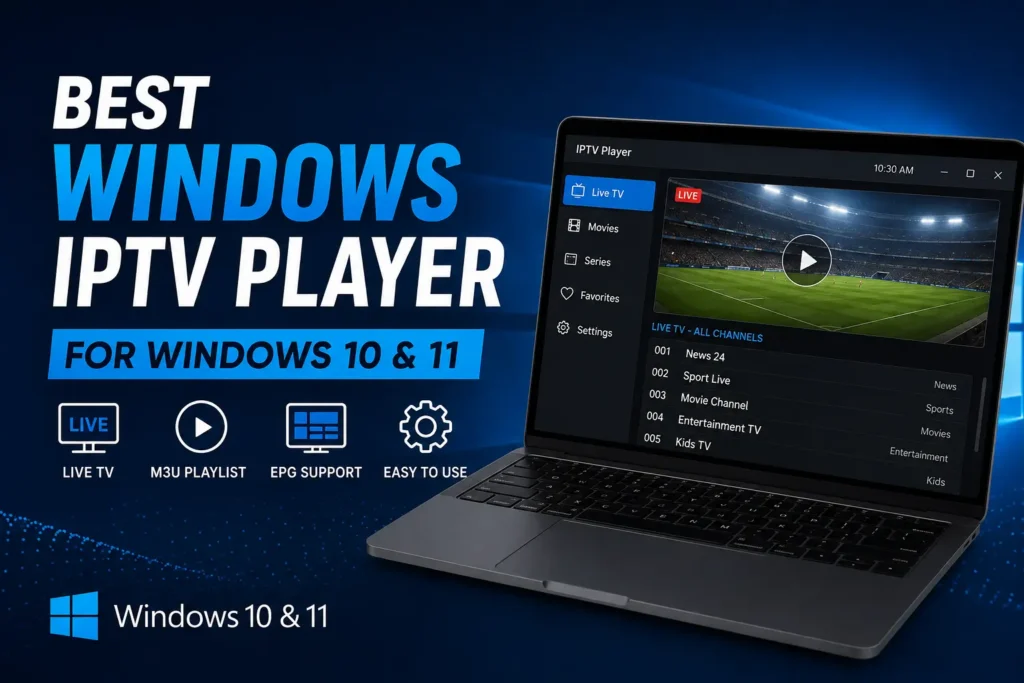
If you want to watch IPTV on your computer, choosing the right Windows IPTV player can make a big difference. A good IPTV player allows you to load your IPTV subscription, organize live TV channels, access electronic program guides, and enjoy streaming directly from your Windows PC.
Whether you use Windows 10 or Windows 11, there are several ways to watch IPTV without needing a dedicated television box.
In this guide, we will explain what a Windows IPTV player is, what features to look for, how IPTV works on a PC, and how you can set everything up.
What Is a Windows IPTV Player?
A Windows IPTV player is software designed to play television channels and other streaming content delivered through an IPTV service.
Unlike traditional television, IPTV delivers content through an internet connection. Depending on the service and player you use, your provider may give you:
- An M3U playlist
- An Xtream Codes API login
- An EPG URL
- A portal or server address
The IPTV player uses these details to load your available channels and display them on your Windows computer.
Important: The IPTV player itself usually does not provide television channels. You need a legitimate IPTV subscription or playlist from a provider that has the appropriate rights to distribute the content.
Why Use an IPTV Player on Windows?
Watching IPTV on a Windows PC can be convenient for several reasons. You can access your channels directly from your computer without purchasing additional hardware.
1. Easy to Use
You can watch your channels directly from your computer without connecting an additional TV box.
2. Large Screen Experience
If your PC is connected to a monitor or television, you can enjoy IPTV on a larger display.
3. Flexible Viewing
A Windows IPTV player can be useful when you are working, traveling, or simply prefer watching television from your computer.
4. Support for Playlists
Many IPTV players support common formats such as M3U playlists, making it relatively easy to add a compatible IPTV service.
5. EPG Support
Some players support an Electronic Program Guide (EPG), allowing you to see what is currently playing and what is scheduled next.
Best Features to Look for in a Windows IPTV Player
Not every IPTV player offers the same experience. Before choosing one, look for the following features.
M3U Playlist Support
M3U is one of the most common playlist formats used by IPTV services.
A good IPTV player for Windows should allow you to add an M3U URL or compatible playlist easily.
Xtream Codes Support
Some IPTV services provide Xtream Codes API credentials instead of an M3U link.
If your provider supports this method, choosing a player with Xtream Codes support can simplify the setup process.
Electronic Program Guide
EPG support is useful if you want a traditional TV-style experience. It can show current programs, upcoming programs, program descriptions, and channel schedules.
Favorites
If your IPTV subscription contains hundreds or thousands of channels, a favorites feature can make navigation much easier. You can create a smaller list of the channels you watch most often.
Search
A built-in search function is another useful feature, especially when your playlist contains a large number of channels.
Full-Screen Playback
For the best viewing experience, make sure the player provides a reliable full-screen mode.
How to Set Up IPTV on Windows 10 or Windows 11
Setting up IPTV on Windows is generally straightforward. The exact process can vary depending on the IPTV player you choose.
Step 1: Choose a Windows IPTV Player
First, install an IPTV player that is compatible with your version of Windows. Make sure you download the software from its official or trusted source.
Step 2: Get Your IPTV Subscription
You will need a legitimate IPTV subscription or playlist that works with the player.
Your provider may give you an M3U URL, Xtream Codes credentials, or another supported login method.
Step 3: Add Your IPTV Playlist
Open the IPTV player and look for an option such as Add Playlist or Add M3U URL.
Enter the playlist information supplied by your provider.
Step 4: Add EPG Information
If your provider supplies an EPG URL, you can usually add it separately.
This allows the player to display TV program information.
Step 5: Load Your Channels
After saving your information, allow the player to load the playlist. Your channels may be organized into categories such as:
- News
- Sports
- Movies
- Entertainment
- Kids
- Documentary
- International
Step 6: Start Watching
Select a channel and start streaming. If everything is configured correctly, the channel should begin playing.
Windows IPTV Player vs IPTV Box
Both options can be useful, but they are designed for different situations.
| Feature | Windows IPTV Player | IPTV Box |
|---|---|---|
| Device | Windows PC | TV |
| Installation | Software | Hardware + apps |
| Portability | High | Lower |
| Keyboard/Mouse | Yes | Usually remote |
| Large TV Support | Yes, with HDMI/display | Yes |
| Cost | Often lower | Additional hardware |
| Best For | PC users | Dedicated TV setup |
If you already have a Windows computer, using an IPTV player for Windows can be a simple way to access your IPTV service without buying additional hardware.
How to Improve IPTV Streaming on Windows
Even a good IPTV player can experience buffering if your internet connection or device is not configured properly.
Use a Stable Internet Connection
A wired Ethernet connection can provide more consistent performance than Wi-Fi.
If you are using Wi-Fi, try to keep your computer reasonably close to the router.
Close Unnecessary Applications
Other applications may consume bandwidth or system resources. Close downloads, cloud synchronization, and unnecessary streaming applications while watching IPTV.
Keep Windows Updated
Make sure Windows and your IPTV player are reasonably up to date. Updates can improve compatibility, security, and overall stability.
Check Your Internet Speed
If multiple devices are streaming simultaneously, your available bandwidth may be reduced.
For HD and higher-quality streaming, a stable connection is particularly important.
Can You Watch IPTV on Windows 11?
Yes. IPTV can be watched on Windows 11 using a compatible IPTV player and a legitimate IPTV service.
The basic process is:
- Install a compatible player.
- Obtain your IPTV subscription.
- Add your M3U playlist or supported login.
- Load the channels.
- Select a channel and start watching.
The exact steps can vary depending on the IPTV player and provider.
Can You Watch IPTV on Windows 10?
Yes. Many IPTV applications and media players can work with Windows 10.
Before installing an application, check its current Windows compatibility requirements and download it from a trusted source.
If you are using an older computer, performance can also depend on your processor, available memory, graphics capabilities, and internet connection.
Troubleshooting Common Windows IPTV Problems
IPTV Player Is Not Loading Channels
Check that your playlist URL or login information has been entered correctly.
If the playlist has expired, contact your IPTV provider.
IPTV Is Buffering
Buffering can be caused by:
- Slow internet
- Wi-Fi interference
- Network congestion
- An overloaded streaming source
- Too many devices using the same connection
Try switching to Ethernet or restarting your router.
EPG Is Not Showing
Check that the EPG URL supplied by your provider is correct and supported by your IPTV player.
Video Is Not Playing
Make sure the stream format is supported by your player. Updating the application or trying another compatible player can sometimes resolve playback issues.
Windows IPTV Player for South African Viewers
For viewers in South Africa, IPTV can be a convenient way to access television content over an internet connection.
If you are looking for an IPTV service in South Africa, make sure you choose a provider that is transparent about the content it offers and has the necessary distribution rights.
Looking for a reliable IPTV subscription in South Africa? Explore our IPTV plans and find an option that works with your preferred device, including Windows PCs.
Frequently Asked Questions
What is the best Windows IPTV player?
The best Windows IPTV player depends on the features you need. Look for compatibility with your IPTV provider’s playlist format, M3U or Xtream Codes support, EPG, favorites, search, and reliable playback.
Can I watch IPTV on a Windows PC?
Yes. You can watch IPTV on a Windows PC using a compatible IPTV player and a legitimate IPTV subscription or playlist.
Does IPTV work on Windows 11?
Yes. Many IPTV players support Windows 11. Always check the software’s current compatibility requirements before installation.
Can I use an M3U playlist on Windows?
Yes. Many IPTV players for Windows support M3U playlists. You normally add the M3U URL supplied by your IPTV provider.
Is a Windows IPTV player free?
Some IPTV players are free, while others offer paid versions or premium features. The player and the IPTV subscription are separate services.
Do I need an IPTV box to watch IPTV on Windows?
No. If you already have a Windows computer, you can use compatible IPTV software without purchasing a dedicated IPTV box.
Final Thoughts
A Windows IPTV player is a practical option for anyone who wants to watch IPTV directly from a Windows 10 or Windows 11 computer. With the right player and a legitimate IPTV subscription, you can organize channels, use playlists, access EPG information, and enjoy streaming without requiring a separate TV box.
Before choosing a player, focus on compatibility, playlist support, ease of use, playback quality, and the features you actually need.
If you are looking for IPTV in South Africa, you can also check our IPTV subscription options and choose a plan compatible with your preferred device.