
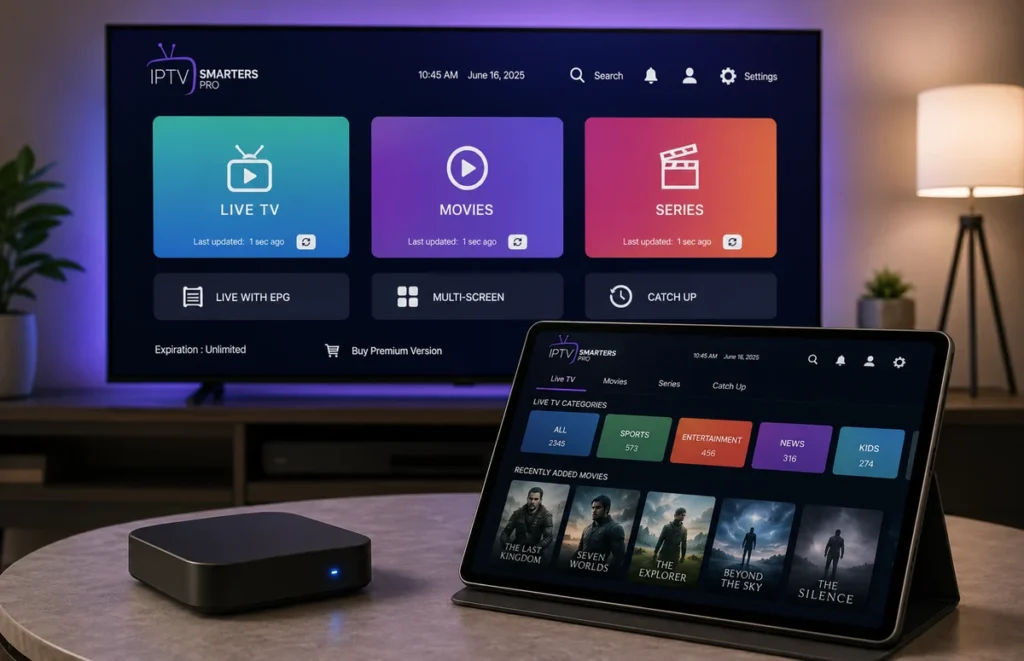
IPTV Smarters Pro is a popular media player that allows users to organise and watch content provided through compatible streaming services. It can be used on several devices, including Android phones, Android TV boxes, Fire TV devices, Smart TVs, tablets and computers.
The app itself does not include TV channels, movies or subscriptions. To use IPTV Smarters Pro, you normally need valid login credentials or a compatible playlist supplied by an authorised service provider.
In this guide, you will learn what IPTV Smarters Pro is, how to download it safely, how to set it up, how to log in using Xtream Codes or M3U playlists, and how to solve common problems such as buffering, login errors and loading issues.
What Is IPTV Smarters Pro?
IPTV Smarters Pro is a media player designed to organise compatible streaming services inside one easy-to-use interface.
Depending on the version of the app and the device you are using, it may support several login methods, including:
- Xtream Codes API
- M3U playlist URLs
- M3U files
- Username and password login
- Electronic Programme Guide information
The application can organise live television, movies, series and other authorised media content.
It is important to understand that IPTV Smarters Pro is only a player. The content available inside the app depends entirely on the service or playlist connected to it.
Is IPTV Smarters Pro Safe and Legal to Use?
IPTV Smarters Pro itself is a media player. Whether the content you access is authorised depends on the service or playlist you connect to the application.
For safer use, you should download applications from official or trusted sources, avoid modified APK files, check the permissions requested by an application and keep your device updated.
You should also only access services and content that you are authorised to use.
Unknown APK files can contain modified code, unwanted advertising or unnecessary permissions, so choosing the download source carefully is important.
How to Download IPTV Smarters Pro Safely
The safest installation method depends on the device you are using.
Before downloading an APK manually, check whether a compatible version of IPTV Smarters Pro is available through the official app store on your device.
For Android devices, check Google Play. For Smart TVs, search the official application store available on the television. Fire TV users should also check the Amazon Appstore before considering manual installation.
If manual APK installation is required, only download the application from a legitimate source you trust.
Avoid websites promoting modified, cracked or “premium unlocked” APK files. These versions may create security or privacy risks.
IPTV Smarters Pro APK Installation on Android
Android phones, tablets and Android TV devices can normally install compatible applications through Google Play or through an APK file when necessary.
Install IPTV Smarters Pro from Google Play
- Open the Google Play Store.
- Search for IPTV Smarters Pro or the currently available compatible Smarters player.
- Check the application information and developer.
- Select Install.
- Wait for installation to finish.
- Open the application.
If you are using Android TV, you can also read our IPTV for Android TV guide for more information about setting up streaming applications on Android-based televisions.
Install IPTV Smarters Pro Using an APK
Only install an APK when you trust its source.
- Download the APK from a trusted source.
- Open your Android device settings.
- Find the setting that allows installation from unknown applications.
- Allow permission only for the browser or file manager you are using.
- Open the downloaded APK file.
- Select Install.
- Wait for installation to complete.
- Open IPTV Smarters Pro.
After installation, you can disable the permission for installing unknown applications again.
The exact menu names may be different depending on your Android version and device manufacturer.
How to Install IPTV Smarters Pro on Fire TV or Firestick
If you are using an Amazon Fire TV or Firestick, start by checking whether a compatible version is available through the Amazon Appstore.
Installing applications directly from an official store is normally the easiest and safest option.
After installation:
- Open IPTV Smarters Pro.
- Accept the required terms if requested.
- Select the login method supported by your provider.
- Enter the information supplied by your authorised service provider.
- Wait for the application to load your account information.
If manual installation is required, only use a legitimate and trusted source for the application file.
Never enter your private streaming credentials into an application downloaded from an unknown source.
How to Set Up IPTV Smarters Pro
After installing IPTV Smarters Pro, you need to connect your authorised streaming account or playlist.
When you open the application, you may see several login options.
Common methods include:
- Login with Xtream Codes API
- Load Your M3U Playlist
- Load M3U File or URL
Choose the method that matches the information supplied by your provider.
IPTV Smarters Pro Login: What Details Do You Need?
The information required depends on the login method you are using.
For Xtream Codes login, you will normally need:
- Username
- Password
- Server URL
Your provider may supply information similar to:
Username: Your account username
Password: Your account password
Server URL: The server address supplied with your account
Enter all information exactly as it was provided.
Even a small mistake can prevent IPTV Smarters Pro from connecting.
Common login mistakes include extra spaces, an incorrect password, a missing part of the server URL, the wrong HTTP or HTTPS address or expired account credentials.
If your login information was previously working but suddenly stops working, contact the service provider that issued the credentials.
How to Add Xtream Codes Login
Xtream Codes is one of the common methods used to configure a compatible IPTV Smarters Pro account.
To add your details:
- Open IPTV Smarters Pro.
- Select Login with Xtream Codes API.
- Enter a name for your playlist.
- Enter your username.
- Enter your password.
- Enter the server URL.
- Select Add User or Login.
- Wait while the application loads your account information.
The first synchronisation can take longer when a large amount of programme or playlist information needs to be downloaded.
Once loading is complete, the available categories should appear inside the application.
How to Add an M3U Playlist
Some services provide an M3U playlist instead of Xtream Codes credentials.
To add an M3U playlist:
- Open IPTV Smarters Pro.
- Select the option for loading a playlist.
- Choose M3U URL if requested.
- Enter a name for your playlist.
- Paste the complete M3U URL.
- Save or add the playlist.
- Wait for IPTV Smarters Pro to load the information.
Make sure you copy the complete URL. A missing character can prevent the playlist from loading correctly.
Do not publicly share private M3U URLs because they may contain information connected to your streaming account.
IPTV Smarters Pro on Smart TV
IPTV Smarters Pro can work with different Smart TV platforms, although availability depends on the television’s operating system and application store.
Start by opening the official app store on your Smart TV.
Search for IPTV Smarters Pro or another compatible Smarters player.
If the application is available:
- Install the app.
- Open IPTV Smarters Pro.
- Select your login method.
- Enter the authorised credentials supplied by your provider.
- Wait for the playlist and account information to load.
If your Smart TV does not support the application directly, you may be able to use an external streaming device such as an Android TV box, Fire TV Stick, Google TV device or another compatible streaming box.
This can also be useful for older Smart TVs with limited storage or slower processors.
Common IPTV Smarters Pro Errors and Fixes
Not every IPTV Smarters Pro problem means the application needs to be reinstalled.
Before making major changes, check your internet connection, restart your streaming device and verify your login information.
IPTV Smarters Pro Not Loading
If IPTV Smarters Pro opens but stays on the loading screen, try the following steps:
- Close the application completely.
- Restart your Smart TV or streaming device.
- Restart your internet router.
- Check whether other internet applications are working.
- Open IPTV Smarters Pro again.
- Check whether an application update is available.
You can also test the same authorised account on another compatible device.
If the same problem appears on several devices, the issue may be connected to the account or service rather than IPTV Smarters Pro itself.
Login Failed or Failed to Authorize
A failed login is commonly caused by incorrect or inactive account credentials.
Check your:
- Username
- Password
- Server URL
- Internet connection
- Account status
If possible, copy and paste your login details instead of typing them manually.
Make sure there are no spaces before or after the username, password or server address.
Also verify that the server URL has been entered exactly as provided.
If all the details appear correct but authentication still fails, contact the provider that supplied your account.
IPTV Smarters Pro Installed and Ready?
Once the app is installed and working correctly on your device,
compare our IPTV plans →
and choose the option that best matches your streaming setup.
Buffering or Freezing
Buffering is one of the most common streaming problems, but IPTV Smarters Pro itself is not always responsible.
Your home network and Wi-Fi connection can have a major effect on streaming performance.
Try:
- Restarting your router
- Moving the router to a more open position
- Moving the streaming device closer to the router
- Using 5 GHz Wi-Fi when the device is close to the router
- Testing 2.4 GHz Wi-Fi when the device is further away
- Using Ethernet when possible
- Pausing large downloads
- Temporarily disconnecting unnecessary devices
Router placement can make a significant difference to connection stability. Read our complete Wi-Fi router placement for IPTV guide to learn how to improve Wi-Fi coverage around your home.
IPTV Smarters Pro Keeps Crashing
If IPTV Smarters Pro closes unexpectedly or freezes frequently, check the device before reinstalling the application.
Try:
- Restarting your Smart TV or streaming device.
- Checking available device storage.
- Updating IPTV Smarters Pro.
- Updating the device operating system.
- Clearing the application’s cache.
On many Android devices, the option can be found under:
Settings → Apps → IPTV Smarters Pro → Storage → Clear Cache
Try Clear Cache first.
Avoid selecting Clear Data unless necessary because it may remove your saved login information and application settings.
Channels or Content Are Not Loading
Sometimes IPTV Smarters Pro opens normally, but some content does not appear.
Start by refreshing the playlist or restarting the application.
You can also:
- Close and reopen IPTV Smarters Pro
- Restart the streaming device
- Check your internet connection
- Refresh the playlist
- Test the same authorised credentials on another compatible device
If exactly the same content is missing on several devices, the issue may be related to the account or playlist rather than the media player.
IPTV Smarters Pro Shows a Black Screen
If IPTV Smarters Pro loads but you see a black screen when playing content, try:
- Restarting the stream
- Restarting IPTV Smarters Pro
- Restarting the device
- Updating the application
- Updating your Smart TV or streaming device
- Trying another supported video player option
Older Smart TVs can sometimes have difficulty decoding newer video formats.
In this situation, using a newer external streaming device may improve compatibility.
Sound Works but There Is No Picture
If you can hear sound but cannot see video, the problem may be related to video decoding.
Try changing the supported video player option inside IPTV Smarters Pro if your version provides this setting.
You should also check for application updates, system updates and available device storage.
Restarting the application and the streaming device can also solve temporary playback problems.
How to Update IPTV Smarters Pro
Keeping IPTV Smarters Pro updated can improve stability, security and device compatibility.
If you installed the application through an official app store:
- Open the app store.
- Search for IPTV Smarters Pro.
- Check whether an update is available.
- Select Update.
If you installed the application manually using an APK, only obtain future versions from the same legitimate source that you originally verified.
Avoid websites offering modified or unlocked APK versions.
Should You Reinstall IPTV Smarters Pro?
Reinstalling IPTV Smarters Pro should normally be one of the final troubleshooting steps.
Before reinstalling, try:
- Restarting the application
- Restarting the device
- Restarting the router
- Checking your login credentials
- Clearing the application cache
- Updating IPTV Smarters Pro
If the problem continues, save your login information before uninstalling the application.
Then reinstall a legitimate version of IPTV Smarters Pro and enter your credentials again.
IPTV Smarters Pro FAQ
Does IPTV Smarters Pro Include TV Channels?
No. IPTV Smarters Pro is a media player and does not automatically include television channels, movies or subscriptions.
The content available inside the application depends on the authorised service or playlist connected to it.
Why Is IPTV Smarters Pro Not Working?
Common causes include incorrect login information, an unstable internet connection, outdated software, insufficient device storage or a temporary account problem.
Restarting the device and checking your login details are good first troubleshooting steps.
Why Does IPTV Smarters Pro Keep Buffering?
Buffering can be caused by weak Wi-Fi coverage, network congestion, router placement or connection instability.
Try restarting your router, improving its position or connecting your streaming device through Ethernet when possible.
Can I Use IPTV Smarters Pro on a Smart TV?
Yes, depending on the television operating system and the applications available through its official app store.
If your television does not support the application directly, a compatible external streaming device may be another option.
What Is Xtream Codes Login?
Xtream Codes is a login method that can use a username, password and server URL supplied by a compatible authorised streaming provider.
Can I Add an M3U Playlist to IPTV Smarters Pro?
Compatible versions of IPTV Smarters Pro may support M3U playlist URLs.
Only use playlists and content that you are authorised to access.
Is IPTV Smarters Pro APK Safe?
An APK can be safe when downloaded from a legitimate and trusted source.
Avoid modified, cracked or unknown APK files because they may create security and privacy risks.
Do I Need Fast Internet for IPTV Smarters Pro?
Streaming quality depends on more than raw internet speed.
Wi-Fi coverage, router placement, network congestion and device performance can all affect playback quality.
Final Thoughts
IPTV Smarters Pro is a flexible media player that can be used across many compatible devices.
For the best experience, download the application from a trusted source, keep it updated, protect your login information and only connect services and content you are authorised to access.
If IPTV Smarters Pro stops loading, starts buffering or shows login errors, check your internet connection and account information before reinstalling the application.
Simple changes such as restarting the router, improving Wi-Fi coverage or updating the device can solve many common streaming problems.
Ready to Start Streaming With IPTV Smarters Pro?
If IPTV Smarters Pro is installed, your device is connected and your setup is ready,
view our IPTV plans →
and choose the plan that fits your device and viewing needs.