
IPTV Network Guide South Africa: Wi-Fi, Ethernet & Router Setup
A reliable IPTV network is just as important as the television, streaming device or media player you use. Even a fast internet package can produce buffering, freezing or slow channel loading when the home network is poorly configured.
For viewers in South Africa, IPTV performance can depend on fibre, LTE or 5G quality, router placement, Wi-Fi signal strength, network congestion and the number of devices connected at the same time.
This guide explains how to improve your IPTV network step by step and how to decide when Wi-Fi, Ethernet or a router upgrade may help.
What Is an IPTV Network?
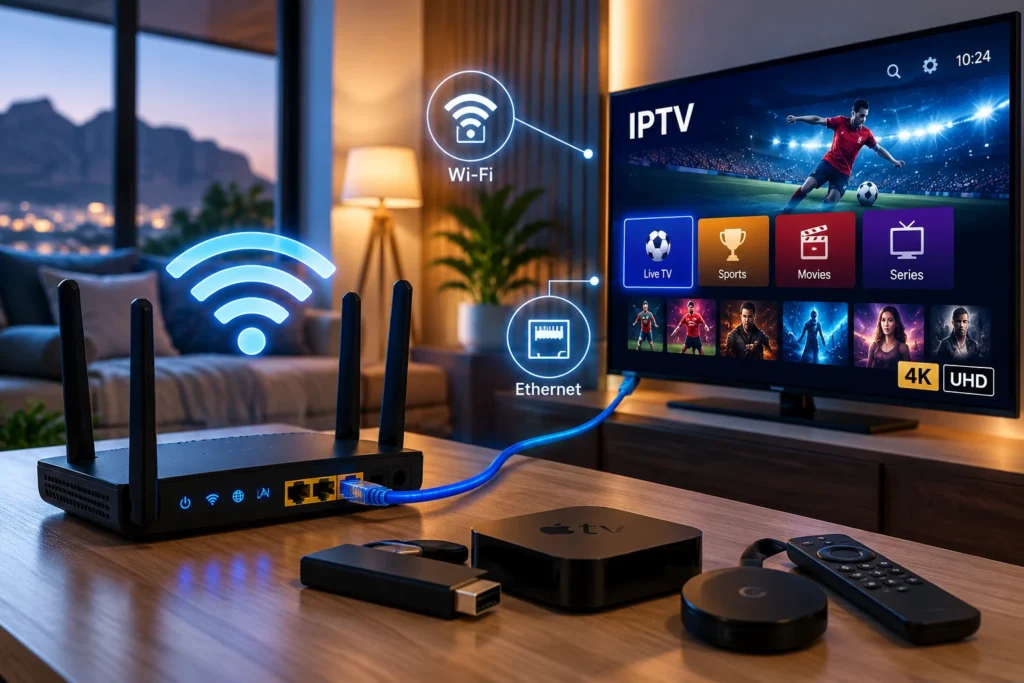
An IPTV network is the connection between your internet service, router, television or streaming device and the media player used for online television.
A typical home setup looks like this:
Internet connection → Router → Wi-Fi or Ethernet → Streaming device → IPTV player
If one part of this chain is unstable, playback can suffer even when the rest of the setup is working correctly.
Internet Speed Is Only Part of the Story
Many users assume buffering always means they need a faster internet package. That is not always true.
A connection may show high speeds during a speed test but still experience:
- Wi-Fi interference
- Packet loss
- High latency
- Evening congestion
- Router overload
- Weak signal near the television
For this reason, stability is often more important than maximum download speed.
If you want to compare speed requirements by video quality, read our internet speed for 4K streaming guide.
Ethernet vs Wi-Fi for IPTV
Ethernet is usually the most stable option when your television or streaming box stays in one location.
A wired connection avoids many of the problems caused by walls, distance and wireless interference.
Ethernet is especially useful for:
- Live sports
- 4K streaming
- Busy households
- Long viewing sessions
- Rooms far from the router
Wi-Fi remains convenient and can work very well when the signal is strong.
For a detailed comparison, see our Ethernet vs Wi-Fi for IPTV guide.
Use 5 GHz Wi-Fi When Possible
Modern routers commonly provide 2.4 GHz and 5 GHz Wi-Fi networks.
The 2.4 GHz band generally provides greater range, while 5 GHz can provide faster performance over shorter distances.
If your Smart TV or streaming device is close to the router, test 5 GHz first.
If the television is far away or separated by several walls, 2.4 GHz may sometimes provide a stronger connection.
Router Placement Can Make a Big Difference
A poorly positioned router can reduce Wi-Fi performance throughout the house.
Avoid placing the router:
- Inside a closed cabinet
- Behind a television
- On the floor
- Next to large metal objects
- Beside appliances that may create interference
Place it in an open and central location whenever possible.
Our Wi-Fi router placement guide explains this in more detail.
Test the Connection Beside Your TV
Do not test your internet only while standing beside the router.
The important measurement is the connection available where you actually watch television.
Run a speed test using a phone or laptop connected to the same Wi-Fi network beside your television.
If the result is much lower than the speed available near the router, your problem is probably local Wi-Fi coverage rather than the internet package itself.
Check for Network Congestion
Streaming quality can drop when several devices use the same connection at once.
Common bandwidth-heavy activities include:
- Large downloads
- Cloud backups
- Online gaming updates
- 4K video on other televisions
- Video calls
- Multiple streaming devices
If IPTV buffering appears mainly in the evening, test the connection again while other devices are temporarily disconnected.
South African Fibre, LTE and 5G Connections
South African households use different types of internet connections, and each behaves differently.
Fibre
Fibre is generally a strong option for consistent home streaming when the network and router are configured correctly.
LTE
LTE can work well, but performance may vary depending on signal strength, tower congestion and time of day.
5G
5G can provide high speeds where coverage is strong, but signal conditions and network congestion can still affect consistency.
If you use mobile internet, test your connection during the hours when you normally watch television rather than relying on a single daytime speed test.
Restart Your Network Correctly
A restart can solve temporary router, DNS and connectivity problems.
Try this order:
- Close your IPTV player.
- Turn off your streaming device.
- Restart the router.
- Wait until the internet connection is fully restored.
- Turn the streaming device back on.
- Open the player and test again.
This simple process can resolve temporary network problems without changing advanced settings.
IPTV Network Ready?
Connection Stable on Your TV?
Once your router, device and internet connection are ready,
compare our IPTV plans →
and choose the subscription period that fits your setup.
Does DNS Affect IPTV?
DNS helps your device translate website and server names into internet addresses.
Changing DNS is sometimes suggested as a universal buffering fix, but it should not be the first troubleshooting step.
Start with connection stability, Ethernet, Wi-Fi signal strength and router performance.
If everything else is working correctly but the device has difficulty resolving services, testing another reputable DNS service may help diagnose the issue.
Old Routers Can Become a Bottleneck
An older router may struggle when many phones, televisions, laptops and smart devices are connected at the same time.
Possible signs include:
- Frequent Wi-Fi disconnections
- Large speed differences between rooms
- Router restarts
- Slow performance when several devices connect
- Poor 5 GHz coverage
Before replacing the router, update its firmware if an official update is available and test the streaming device using Ethernet.
Do Not Ignore Your Streaming Device
The network is not always responsible for poor playback.
An older television or streaming box can experience slow menus, app crashes and decoding problems.
Restart the device, close unnecessary applications and keep the operating system and IPTV player updated.
If your player repeatedly closes, see our IPTV app crashing troubleshooting guide.
Check IPTV Data Usage
Streaming can consume significant amounts of data, particularly at higher video resolutions.
This matters most for households using capped LTE, 5G or other limited-data packages.
Reducing picture quality when necessary can lower data consumption and may also improve playback on unstable connections.
See our IPTV data usage in South Africa guide for hourly and monthly usage examples.
Simple IPTV Network Troubleshooting Checklist
If your stream keeps buffering, work through these checks in order:
- Restart the player and streaming device.
- Test internet speed beside the television.
- Try Ethernet if available.
- Test both 2.4 GHz and 5 GHz Wi-Fi.
- Move the router to a better location.
- Pause large downloads and other streams.
- Restart the router.
- Update the streaming device and player.
- Test during a different time of day.
Changing one thing at a time makes it easier to identify the real cause.
Frequently Asked Questions
Is Ethernet better than Wi-Fi for IPTV?
Ethernet is generally more consistent because it avoids wireless interference. Good Wi-Fi can still provide excellent performance when the router is close to the streaming device.
Is 5 GHz better for IPTV?
5 GHz can provide faster speeds over shorter distances. However, 2.4 GHz may provide better range when the television is farther from the router.
Why does IPTV buffer even with fast internet?
Possible causes include weak Wi-Fi, network congestion, router problems, device performance or instability in the streaming source.
Should I change DNS to stop buffering?
Not immediately. First test the connection, Wi-Fi signal, Ethernet and router. DNS changes are more useful for specific connectivity or name-resolution problems.
Can LTE or 5G work for IPTV in South Africa?
Yes, when signal quality and available bandwidth are stable. Performance may change during busy periods, so testing during normal viewing hours is important.
Final Thoughts
A reliable IPTV network depends on more than internet speed alone. Router placement, Wi-Fi quality, Ethernet availability, network congestion and device performance all influence streaming quality.
Start with simple tests before spending money on new equipment. Test the connection beside your television, compare Ethernet and Wi-Fi, restart the network and identify whether performance changes during peak hours.
Your IPTV Network Is Ready — What’s Next?
If your internet connection, router and streaming device are working well,
view our IPTV plans →
and choose the option that best suits your viewing setup.