
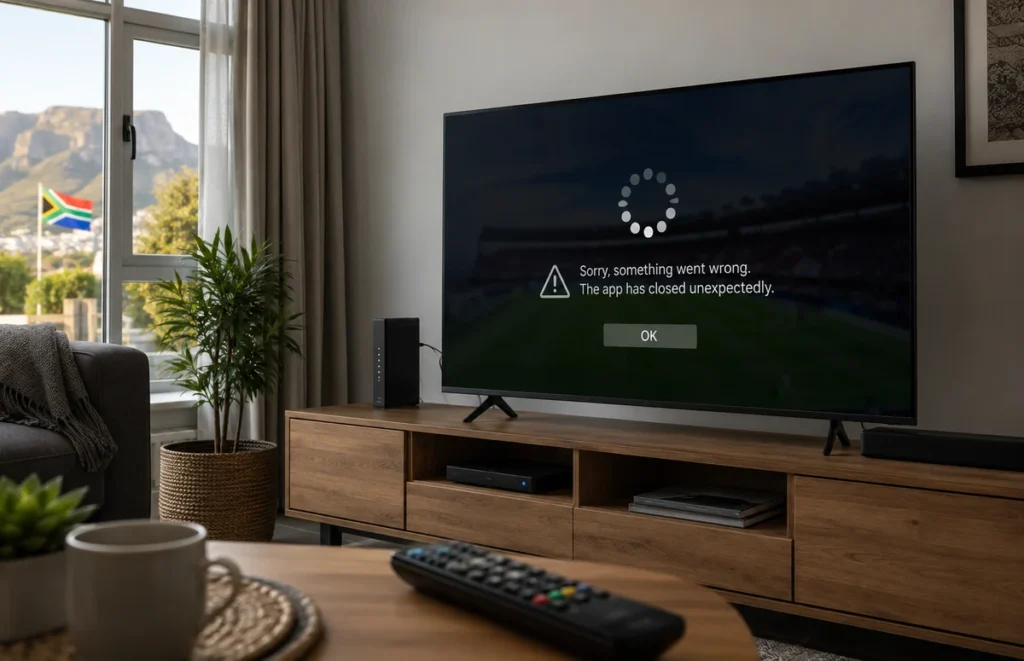
When an IPTV app keeps crashing, freezing or closing unexpectedly, the problem may come from the application, Smart TV software, available storage or the home network.
Repeatedly reopening the player may provide a temporary solution, but it does not identify the real cause. A structured troubleshooting process helps you test one possible problem at a time.
This guide explains how viewers in South Africa can fix an IPTV application that will not open, closes during playback or becomes unresponsive on a Smart TV or streaming device.
If your IPTV app is not working at all, opens but will not load channels, keeps freezing, or closes unexpectedly, the cause is usually related to the app, your Smart TV, login details or network connection.
IPTV App Not Working? Check These 5 Things First
If your IPTV app is not working, do not reinstall everything immediately. Start with these quick checks:
- Confirm that your Smart TV is connected to the internet.
- Restart the IPTV app and your television.
- Check that your login details or playlist are still valid.
- Test another channel or category.
- Check whether an update is available for the IPTV player.
If the app opens but channels do not load, the problem may be different from an app that crashes immediately. Continue with the troubleshooting steps below to identify whether the issue comes from the app, device, account or network.
Why Does an IPTV App Keep Crashing?
An IPTV application may stop working for several reasons.
Common causes include:
- Temporary application errors
- Outdated app software
- Outdated Smart TV firmware
- Insufficient internal storage
- Too many applications running in the background
- Corrupted app data or cache
- An incomplete application installation
- Device overheating
- Weak or unstable internet connectivity
- An incompatible app or television model
The correct solution depends on when the problem happens and whether other applications are affected.
Identify When the App Crashes
Before changing any settings, note exactly when the problem occurs.
Ask these questions:
- Does the app close immediately after opening?
- Does it crash only when a channel starts playing?
- Does it happen with every channel or only one category?
- Does it happen after several minutes of playback?
- Are other applications also freezing?
- Did the problem begin after an app or television update?
- Does the same account work on another device?
This information helps separate an application problem from a network, device or account problem.
Step 1: Close and Reopen the IPTV App
Begin with the simplest solution.
- Exit the IPTV player completely.
- Return to the television home screen.
- Wait for approximately 30 seconds.
- Open the application again.
- Test the same channel or section.
Do not repeatedly press the remote-control buttons while the app is loading. A slow device may need additional time to process the channel list and programme guide.
Step 2: Restart the Smart TV
Turning the screen off with the remote does not always perform a complete restart.
To power-cycle the television:
- Close the IPTV application.
- Turn off the television.
- Disconnect it from the electrical outlet.
- Wait for approximately one minute.
- Reconnect the television.
- Turn it on and reopen the player.
A complete restart clears temporary processes and reloads the television software.
Some Smart TVs also provide a restart option inside the Settings menu.
Step 3: Restart the Router
An unstable network can make an application appear to freeze or crash when it is waiting for channel, playlist or programme-guide information.
- Turn off the router.
- Wait for approximately one minute.
- Turn it on again.
- Wait until the internet connection is fully restored.
- Reconnect the Smart TV.
- Test the IPTV application again.
When possible, test the player through Ethernet. This helps determine whether weak Wi-Fi is contributing to the problem.
Read our guide comparing Ethernet and Wi-Fi for IPTV for more information.
Step 4: Test Another Application
Open another application on the same television.
Test a normal streaming application or the television’s app store.
The result can help identify the source:
- If every app crashes, the issue may involve the television software, storage or network.
- If only the IPTV player crashes, the issue may be limited to that application or its saved data.
- If only one stream causes the crash, test another channel or category.
A problem affecting one application does not automatically mean that the entire television is faulty.
Step 5: Check for an IPTV App Update
An outdated player may become unstable after a television software change or service update.
Open the television’s official app store and check whether an update is available.
Depending on your device, this may be:
- Google Play Store
- Samsung Apps
- LG Apps or Content Store
- VIDAA App Store
- Amazon Appstore
Install the latest available version, restart the television and test the application again.
Use applications from trusted sources and avoid downloading unknown installation files from unverified websites.
Step 6: Update the Smart TV Software
Television software updates may include security, compatibility and performance fixes.
The exact menu depends on the manufacturer, but the update option is normally located under:
- Settings
- Support
- System
- Device Preferences
- About
- Software Update
Connect the television to a stable internet connection before beginning the update.
Do not disconnect the television from power while an update is being installed.
Step 7: Check Available Storage
Smart TVs and streaming boxes normally have limited internal storage.
The IPTV player may need free space for:
- Application updates
- Temporary files
- Channel logos
- Programme-guide data
- Playlist information
- Recently watched history
When storage is almost full, applications may load slowly, freeze or close unexpectedly.
How to Free Storage
- Remove applications you no longer use.
- Delete unnecessary downloaded files.
- Remove old screenshots or recordings where supported.
- Clear cache from large applications.
- Restart the device after freeing space.
Do not remove system applications unless the television provides a safe official option.
Step 8: Close Background Applications
Some televisions keep recently used applications active in the background.
When several demanding apps remain open, the IPTV player may have less memory available.
Close unused applications and restart the television before opening the IPTV player again.
This step is particularly useful on older Smart TVs and entry-level Android TV boxes with limited memory.
Step 9: Clear the IPTV App Cache
Compatible Android TV, Google TV and mobile devices may allow you to clear an individual application’s cache.
A typical process is:
- Open Settings.
- Select Apps.
- Choose See All Apps or Manage Apps.
- Select the IPTV player.
- Open Storage and Cache.
- Select Clear Cache.
- Restart the application.
Menu names may differ according to the television or streaming-box manufacturer.
Clearing cache normally removes temporary files without deleting the complete account profile. However, review the confirmation message before continuing.
Clear Data Only When Necessary
Clear Data or Clear Storage is different from clearing cache.
Clearing app data may remove:
- Saved login details
- Playlists
- Favourites
- Application settings
- Viewing history
Before selecting this option, save your authorised username, password, server address or M3U link in a secure place.
After clearing the data, you may need to configure the player again.
IPTV App Not Working After Login?
If the app opens normally but displays a login error or does not load content, check the account details before changing the television settings.
- Re-enter the username and password carefully.
- Check for accidental spaces before or after the login details.
- Confirm that the server URL is entered correctly.
- Make sure the subscription or authorised account is still active.
- Restart the app after saving the correct details.
If the same login works on another compatible device, the issue may be related to the app or Smart TV rather than the account.
Step 10: Refresh the Playlist or Account
The application may crash while loading outdated or incomplete playlist information.
Look for an option such as:
- Refresh Playlist
- Reload Channels
- Update Content
- Refresh EPG
- Sync Account
Wait for the process to finish before opening another section.
When the playlist does not refresh, confirm that your subscription is active and that the login details are still correct.
Step 11: Reduce Programme-Guide Data
A large electronic programme guide can require additional memory and processing power.
On a low-powered device, the application may become slow or close while loading a large amount of guide data.
When the player provides the option, try:
- Reducing the number of EPG days
- Loading the programme guide manually
- Disabling automatic updates temporarily
- Removing unused categories
- Refreshing the guide after restarting the device
Change one setting at a time and test the application again.
Step 12: Test a Lower Video Quality
The IPTV app may become unstable when the device struggles to decode a high-resolution stream.
Test a standard-definition or HD channel instead of 4K.
If lower-quality content works correctly, possible causes include:
- Limited device processing power
- Insufficient network stability
- Unsupported video decoding
- Device overheating
- High memory usage
Read our guide about internet speed for 4K streaming before selecting the highest resolution.
Step 13: Check Hardware Decoding Settings
Some IPTV players provide software-decoding and hardware-decoding options.
Hardware decoding can improve performance on compatible devices, but it may cause playback problems when the device does not fully support the stream format.
If the player crashes when playback starts:
- Open the player settings.
- Find Decoder or Playback Engine.
- Note the current setting.
- Switch between hardware and software decoding.
- Restart the application.
- Test the same stream again.
Return to the original setting when the change does not improve performance.
Step 14: Check for Device Overheating
Streaming devices may become hot during long viewing sessions, particularly when they are installed behind a television with limited airflow.
Signs of possible overheating include:
- The app crashes after a similar amount of time.
- The device becomes unusually hot.
- Navigation becomes slow.
- The complete device restarts.
- Playback works again after the device cools down.
Turn the device off and allow it to cool.
Keep ventilation openings clear and avoid covering the device with other equipment.
Step 15: Reinstall the IPTV Player
When restarting, updating and clearing cache do not solve the problem, reinstall the application.
Before uninstalling it, save the authorised account information you will need.
- Remove the IPTV player through the official app-management menu.
- Restart the television.
- Open the official app store.
- Download the player again.
- Add your authorised login details.
- Allow the playlist to load fully.
- Test several channels.
Reinstalling replaces damaged or incomplete application files with a fresh copy.
Step 16: Test Another Compatible Player
When one player continues to crash, test the authorised account in another compatible application.
Choose a player that supports the login format supplied by your provider.
If the account works correctly in another application, the original player may be incompatible with your television or software version.
If every player has the same problem, continue testing the device, network and account.
Check Whether the Television Is Too Old
Older Smart TVs may no longer support newer application versions or current streaming technologies.
Possible signs include:
- The app is no longer available in the store.
- The television cannot install software updates.
- Applications display low-memory warnings.
- The interface becomes extremely slow.
- The player closes when loading large playlists.
An external Android TV, Google TV or Fire TV device may provide better application compatibility than the television’s built-in system.
What to Do When Only One Channel Causes the Crash
When the player works normally until you open one specific channel, test other channels in the same and different categories.
The issue may involve:
- One stream format
- One resolution
- One audio codec
- A temporary source problem
- A decoding compatibility issue
Do not repeatedly open the same channel. Test a different stream and report the affected category to your service provider.
What to Do When Every App Crashes
When several unrelated applications crash, the problem is less likely to involve only the IPTV player.
Check:
- Available storage
- Television software updates
- Device temperature
- Network stability
- Power supply
- Recently installed applications
Restart the television and remove unnecessary applications before considering a full reset.
Do Not Factory Reset the TV First
A factory reset removes settings, accounts, applications and other saved information.
Use it only after completing the safer troubleshooting steps and checking the manufacturer’s instructions for your exact model.
Before a factory reset:
- Save important account details.
- Record picture and network settings.
- Confirm that you know the television account password.
- Check whether other applications are affected.
- Contact the television manufacturer when necessary.
A factory reset will not fix an internet-service problem or an issue affecting only one stream.
Recommended Troubleshooting Order
Follow this order to avoid unnecessary changes:
- Close and reopen the app.
- Restart the Smart TV.
- Restart the router.
- Test another application.
- Update the IPTV player.
- Update the television software.
- Free device storage.
- Close background apps.
- Clear the player cache.
- Refresh the playlist and EPG.
- Test lower video quality.
- Change decoding mode.
- Reinstall the player.
- Test another compatible application.
- Contact support with complete details.
Information to Send to Support
Useful information helps support identify the problem more quickly.
Include:
- Smart TV or streaming-device model
- Operating system
- IPTV application name
- Application version
- Wi-Fi or Ethernet connection
- When the crash occurs
- Whether every channel is affected
- Whether another player works
- Whether the account works on another device
- Any error message displayed
Do not send public screenshots containing passwords or complete playlist URLs.
How to Prevent Future IPTV App Crashes
- Keep the player updated.
- Install television software updates.
- Leave free internal storage.
- Remove applications you no longer use.
- Restart low-powered devices regularly.
- Keep streaming devices ventilated.
- Use a stable network connection.
- Avoid changing several advanced settings at once.
- Use a player compatible with your device.
For network-related problems, review our complete IPTV buffering fix checklist.
You can also improve wireless performance by following our guide to Wi-Fi router placement for IPTV.
IPTV App Not Working on Samsung Smart TV
If an IPTV app is not working on a Samsung Smart TV, restart the television completely rather than only switching the screen off. Check for both Samsung software updates and app updates.
You can also remove unused applications if storage is limited. If the IPTV player continues to close or freeze, reinstall it from the official Samsung app store where available.
IPTV App Not Working on LG Smart TV
On an LG Smart TV, first restart the TV and router, then check the LG Content Store for an updated version of the IPTV player.
If the application opens but performs slowly, check available storage and close other applications. Reinstalling the player may help when its local files have become corrupted.
IPTV App Not Working on Hisense Smart TV
Hisense televisions may use VIDAA, Google TV or Android TV depending on the model. The available troubleshooting options therefore vary.
Restart the TV, update its software and check the appropriate app store for updates. On compatible Android or Google TV models, clearing the IPTV application’s cache may also help.
Frequently Asked Questions
Why does my IPTV app close as soon as I open it?
The application may have corrupted data, insufficient available storage, an incomplete update or a compatibility problem. Restart the device, update the app and clear its cache before reinstalling it.
Will clearing the IPTV app cache delete my login?
Clearing cache normally removes temporary files, but menu behaviour can vary. Read the confirmation message and save your login details before changing app storage settings.
Why does the app crash when I select a channel?
The device may be struggling with the stream resolution, decoder or media format. Test another channel, lower quality and an alternative decoding mode.
Can weak Wi-Fi cause an IPTV app to crash?
An unstable connection may make the application freeze, stop loading or become unresponsive. Test Ethernet or move the television closer to the router.
Should I reinstall the IPTV player?
Reinstall it after testing restarts, updates, storage and cache. Save your authorised login details before removing the application.
Why does the app crash after several minutes?
Possible causes include overheating, low memory, background apps, a large programme guide or unstable connectivity.
Do I need a new Smart TV?
Not necessarily. First test updates, storage, another player and an external streaming device. Older television software may have limited app compatibility.
Will a factory reset fix the crashing app?
It may help with a television-wide software problem, but it should remain a final step because it removes saved settings and applications.
App Working Again? Choose the Right IPTV Plan
If your IPTV app is now stable on your Smart TV and your internet connection is working correctly, compare the available plans and choose the option that best matches your device and viewing needs.
Final Thoughts
When an IPTV app keeps crashing, begin with simple actions before changing advanced settings.
Restart the television and router, update the application, free storage and clear temporary data. Test a lower-quality channel and another compatible player to identify whether the problem involves the app, device, network or stream.
Avoid immediately performing a factory reset. A structured checklist normally provides clearer information and reduces the risk of deleting settings unnecessarily.
Visit Prime IPTV SA for more Smart TV setup, home-network and IPTV troubleshooting guides for South African viewers.