
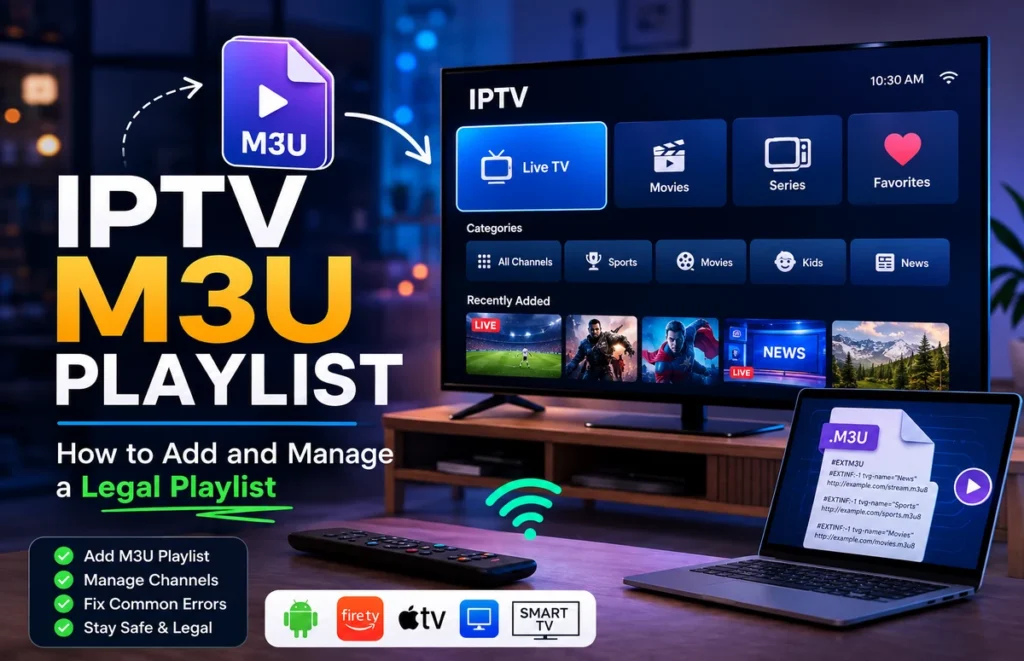
An IPTV M3U playlist is one of the most common ways to organise and load authorised streaming content into a compatible media player.
Instead of installing a different application for every source, an M3U playlist can contain links to live streams, video content and related information that a compatible IPTV player can read and organise.
In this guide, we explain what an IPTV M3U playlist is, how it works, how to add one to popular players, how to protect your private playlist URL and how to fix common M3U playlist errors.
This guide focuses on legitimate and authorised playlists. It does not provide lists of premium channels or copyrighted streams.
What Is an IPTV M3U Playlist?
An IPTV M3U playlist is a text-based playlist format that contains links to media streams.
M3U originally stood for MP3 URL, but the format is now widely used for different types of audio and video streaming.
In an IPTV setup, an M3U playlist may contain:
- Live TV stream links
- Radio streams
- Video-on-demand links
- Channel names
- Channel groups
- Logos
- Other playlist information
The IPTV player reads the playlist and displays the available content in a more user-friendly interface.
The M3U file itself does not normally store the video. Instead, it tells the player where the media stream is located.
How Does an IPTV M3U Playlist Work?
An M3U playlist can be supplied as either a file or a URL.
An M3U URL may look similar to a normal web address, while an M3U file usually ends in:
.m3u or .m3u8
When you add the playlist to a compatible IPTV player, the application reads the information contained in the playlist and attempts to connect to each authorised stream.
The basic process is:
- You receive or create an authorised M3U playlist.
- You open a compatible IPTV player.
- You add the M3U URL or file.
- The player reads the playlist.
- The available categories and streams appear inside the application.
The exact interface depends on the IPTV player you use.
M3U vs M3U8: What Is the Difference?
M3U and M3U8 are closely related playlist formats.
The main difference is character encoding.
M3U8 files use UTF-8 encoding, which makes them better suited to international characters and modern streaming environments.
For most everyday users, both formats can work similarly when supported by the IPTV player.
You generally do not need to convert a playlist unless your player specifically requires a particular format.
Is an IPTV M3U Playlist Legal?
The M3U format itself is simply a playlist technology.
Whether using a particular IPTV M3U playlist is legal depends on where the streams come from and whether you are authorised to access them.
A playlist containing your own media, free public streams or content provided by an authorised service can be legitimate.
Avoid websites that publish large lists of premium television channels, sports events or paid streaming services without clear permission from the rights holders.
The fact that a playlist is available online does not automatically mean that the content inside it is authorised.
Where Do You Get an IPTV M3U Playlist?
A legitimate M3U playlist can come from several sources.
For example:
- An authorised streaming provider
- Your own media server
- A public broadcaster that officially provides streaming links
- A legal internet radio service
- Your own locally hosted media
If a streaming provider supports M3U, it may supply you with either a playlist file or a private M3U URL.
Always check the terms of the service and make sure you have permission to access the streams included in the playlist.
How to Add an IPTV M3U Playlist to a Player
The exact steps vary between applications, but the setup is normally straightforward.
In most IPTV players:
- Open the IPTV player.
- Select Add Playlist or a similar option.
- Choose M3U URL or M3U File.
- Enter a name for your playlist.
- Paste the full M3U URL or select the M3U file.
- Save the playlist.
- Wait for the player to load the available content.
A large playlist may take longer to load the first time.
Make sure you copy the full URL. Even one missing character can stop the playlist from loading.
How to Add an M3U Playlist to IPTV Smarters Pro
M3U Playlist Ready? Choose the Right IPTV Plan
If your player accepts the playlist correctly and playback is stable,
compare our IPTV plans →
and choose the option that best matches your device and viewing setup.
Compatible versions of IPTV Smarters Pro can support M3U playlists.
The general setup process is:
- Open IPTV Smarters Pro.
- Choose the option to load a playlist or file/URL.
- Select M3U URL.
- Enter a name for the playlist.
- Paste your authorised M3U URL.
- Save the playlist.
- Wait for the application to load the information.
If you also want to learn how to install, log in and configure the application, read our IPTV Smarters Pro setup guide.
How to Add an IPTV M3U Playlist on Android TV
Android TV supports many media players that can read M3U playlists.
The exact steps depend on the application, but usually you will need to:
- Install a compatible IPTV player from a trusted source.
- Open the application.
- Select the option to add a playlist.
- Choose M3U URL or M3U file.
- Enter your authorised playlist.
- Save the configuration.
If you are setting up a streaming application on an Android-based television, our IPTV for Android TV guide provides additional setup information.
How to Add an M3U Playlist on a Smart TV
Smart TV support depends on the television brand, operating system and IPTV player you choose.
Start by checking the official application store on your television for a compatible M3U player.
After installing the player:
- Open the app.
- Find the playlist section.
- Select the M3U URL option.
- Enter or paste your private playlist URL.
- Save the playlist.
- Allow the application to synchronise.
If your Smart TV does not support the player you need, an external Android TV or Fire TV device may provide more options.
How to Manage a Large IPTV M3U Playlist
Some M3U playlists can contain hundreds or even thousands of entries.
A large playlist can become difficult to navigate, particularly on older Smart TVs and low-powered streaming devices.
To make your playlist easier to use:
- Remove entries you do not use
- Organise content into categories
- Use clear channel or stream names
- Remove duplicate entries
- Keep the playlist updated
- Avoid loading unnecessary content
A smaller and better organised playlist may also load faster on some devices.
How to Protect Your Private M3U Playlist URL
Your M3U URL may contain private information connected to your streaming account.
For this reason, you should treat it like a password.
Do not:
- Post your private M3U URL on social media
- Share screenshots showing the full playlist address
- Publish it in forums
- Upload it to public websites
- Send it to people you do not trust
If someone else obtains your private playlist URL, they may be able to use your account or cause your provider to detect multiple connections.
If you accidentally expose the URL publicly, contact the service that issued it and ask whether the credentials should be changed.
Why Is My IPTV M3U Playlist Not Loading?
An M3U playlist may fail to load for several reasons.
1. The M3U URL Is Incorrect
Check that you copied the complete URL.
A missing character, extra space or incorrect symbol can prevent the player from connecting.
When possible, copy and paste the URL instead of typing it manually.
2. Your Internet Connection Is Unstable
The player needs a stable connection to download playlist information and access the streams.
Try opening another streaming application or website to confirm that your internet connection is working normally.
If your Smart TV has weak Wi-Fi, read our Wi-Fi router placement guide for practical ways to improve the connection around your home.
3. The Playlist Has Expired
Some private playlists are linked to an account with an expiry date.
If the playlist previously worked but suddenly stops loading, check whether your account is still active.
4. The Server Is Temporarily Unavailable
A playlist can be correct while the server hosting the streams is temporarily unavailable.
Wait a few minutes and try again before changing all of your application settings.
5. The IPTV Player Has a Problem
Try closing and reopening the player.
You can also:
- Restart the device
- Update the IPTV player
- Clear the application cache
- Test the playlist in another compatible player
Testing another player can help determine whether the problem comes from the playlist or the application.
M3U Playlist Loads but Streams Do Not Play
Sometimes the playlist itself loads correctly, but individual streams do not start.
This can happen if:
- The specific stream is temporarily unavailable
- Your account does not have access to that stream
- The stream format is not supported by the player
- Your network connection is unstable
- The server is overloaded
Try several different authorised streams inside the playlist.
If only one entry fails, the problem is likely related to that specific stream.
If everything fails, check the account, internet connection and playlist URL.
Why Does an M3U Playlist Keep Buffering?
The M3U format itself does not normally cause buffering.
Buffering usually happens during playback because of network conditions, server performance or device limitations.
Try:
- Restarting your router
- Using Ethernet instead of Wi-Fi
- Moving closer to the router
- Testing 5 GHz Wi-Fi
- Stopping large downloads on other devices
- Restarting your Smart TV or streaming device
In South African homes where several devices share the same connection, network congestion can become especially noticeable when multiple people stream or download at the same time.
Should You Download Free IPTV M3U Playlist Lists?
You may find websites advertising free IPTV M3U playlists containing thousands of premium channels.
Be careful with these lists.
They may include:
- Unauthorised copyrighted streams
- Dead links
- Unstable servers
- Tracking links
- Misleading downloads
- Malicious files or advertisements
For reliability, privacy and legal compliance, use playlists from legitimate sources and services that clearly have permission to distribute the content.
Can You Edit an M3U Playlist?
Yes. An M3U playlist is fundamentally a text file, so advanced users can edit it with a normal text editor.
You may be able to:
- Remove unwanted entries
- Rename entries
- Reorganise content
- Remove duplicate links
- Create smaller playlists
Before editing an important playlist, create a backup copy in case something is accidentally removed.
If the playlist is dynamically generated by a service provider, manual changes may also be replaced the next time the playlist is refreshed.
IPTV M3U Playlist FAQ
What Is an IPTV M3U Playlist?
An IPTV M3U playlist is a text-based playlist containing links and information that compatible media players can use to organise and access authorised streaming content.
Is an M3U Playlist the Same as IPTV?
No. M3U is a playlist format. IPTV refers more broadly to television or video delivered using internet protocol technology.
An M3U playlist is simply one method that can be used to organise streaming links.
Can IPTV Smarters Pro Use an M3U Playlist?
Compatible versions of IPTV Smarters Pro can support M3U playlist URLs or files.
You normally add the playlist through the app’s playlist or M3U login option.
Why Is My M3U Playlist Not Working?
Common causes include an incorrect URL, an expired account, a temporary server problem, an unstable internet connection or an issue with the IPTV player.
Can I Use an M3U Playlist on Android TV?
Yes. Many Android TV media players support M3U files and URLs.
Install a compatible player from a trusted source and add your authorised playlist through the application’s playlist settings.
Is It Safe to Share My M3U URL?
No. A private M3U URL may contain credentials or information connected to your account.
Treat it like a password and do not publish it publicly.
Are Free IPTV M3U Playlists Legal?
It depends on the content and whether the person or organisation distributing the streams has permission to do so.
A free playlist is not automatically legal simply because it can be found online.
Final Thoughts
An IPTV M3U playlist can be a practical way to organise authorised streams on a compatible player, but the setup only works well when the playlist details are correct, the app is compatible and the internet connection is stable.
Before changing several settings at once, check the playlist URL, restart the player and test your connection step by step.
Playlist Working? Choose the Plan That Fits Your Setup
If your M3U playlist is loading correctly and playback is stable,
compare our IPTV plans →
and choose the option that best matches your device, connection and viewing needs.