
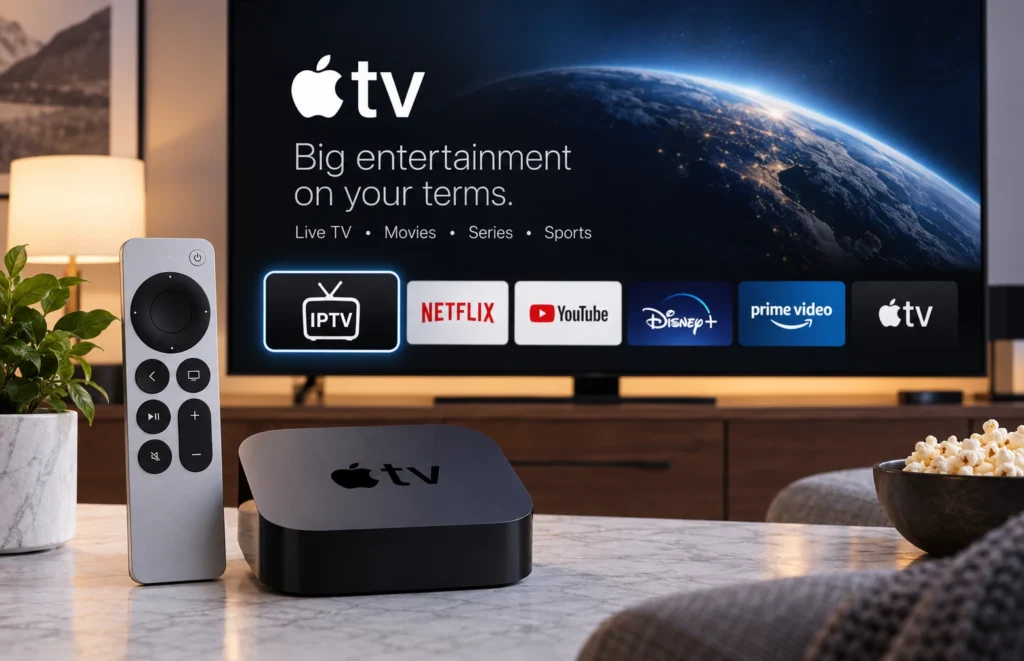
Apple TV is one of the most reliable streaming devices for watching live television, movies and on-demand content. If you have access to a legally authorised IPTV service, you can use a compatible IPTV player for Apple TV to organise and play your channels directly on your television.
This guide explains how to use IPTV for Apple TV, which types of IPTV apps are available, how to install a player from the App Store, how M3U playlists and Xtream Codes work, and how to fix common Apple TV IPTV problems.
For information about IPTV options and supported devices in South Africa, you can also visit Prime IPTV SA.
Can You Use IPTV on Apple TV?
Yes. Apple TV supports IPTV through compatible third-party media players available in the Apple App Store.
The IPTV player itself normally does not provide television channels. Instead, it acts as an interface that allows you to load streaming details supplied by an authorised IPTV provider or content source.
Depending on the player, you may be able to add content using:
- M3U playlist URLs
- Xtream Codes-style login information
- Portal or server URLs
- EPG or electronic programme guide URLs
Availability varies between IPTV apps, so always check the App Store description before installing an application.
What You Need Before Installing IPTV on Apple TV
Before starting the setup, make sure you have:
- An Apple TV connected to the internet
- An active Apple ID
- Access to the Apple App Store
- A compatible IPTV player
- Authorised IPTV login information or playlist details
- A stable internet connection
For HD and 4K streaming, a reliable internet connection is especially important because unstable Wi-Fi may cause buffering or freezing.
How to Install an IPTV Player on Apple TV
Installing an IPTV app on Apple TV is similar to installing any other streaming application.
Step 1: Open the App Store
Turn on your Apple TV and open the App Store from the home screen.
Step 2: Search for an IPTV Player
Select the search icon and search terms such as:
- IPTV player
- M3U player
- Live TV player
Several IPTV players may appear depending on your country and Apple App Store region.
Step 3: Install the App
Select the application you want to use and choose Get or Install.
Wait for the app to finish downloading.
Step 4: Open the IPTV App
Once installation is complete, return to the Apple TV home screen and open the IPTV player.
You can then proceed with the configuration method supported by your app.
How to Set Up IPTV on Apple TV With Xtream Codes
Some IPTV players support login details commonly known as Xtream Codes.
If your authorised service provides this option, you may receive:
- Server or portal URL
- Username
- Password
Inside your Apple TV IPTV application, look for an option such as:
- Add User
- Add Playlist
- Xtream Codes API
- Login With Xtream Codes
Enter the information exactly as it was provided.
After saving the account, the app may take a few moments to download available categories, channel information and programme guide data.
How to Add an M3U Playlist to Apple TV
Another common method is using an M3U playlist.
An M3U playlist usually contains links to authorised live streams or media files.
To add one:
- Open your IPTV player.
- Select Add Playlist.
- Choose M3U URL or a similar option.
- Enter your playlist URL.
- Give the playlist a name.
- Select Save or Add.
The IPTV player should then begin importing the playlist.
If you want to understand M3U playlists in more detail, read our IPTV M3U playlist guide.
Best Type of IPTV Player for Apple TV
There is no single IPTV app that is best for every Apple TV user. When choosing an app, consider the features you actually need.
A good IPTV app for Apple TV may include:
- M3U playlist support
- Xtream Codes compatibility
- EPG support
- Favourite channels
- Search functionality
- Live TV categories
- Video-on-demand organisation
- Multi-device synchronisation
- Parental controls
You should also check recent App Store reviews because features and app availability can change over time.
Apple TV IPTV Using M3U vs Xtream Codes
Both methods can work well, but they are slightly different.
M3U Playlist
An M3U setup normally uses one playlist URL containing your available streams.
It is simple and widely supported by media players.
Xtream Codes
Xtream-style setup usually requires a server address, username and password.
Many users find this method easier for organising live TV, movies, series and programme-guide information when their authorised provider supports it.
How to Watch IPTV on Apple TV With AirPlay
If your preferred IPTV application is available on your iPhone or iPad but not on Apple TV, AirPlay may provide another option.
To use AirPlay:
- Connect your Apple TV and iPhone or iPad to the same Wi-Fi network.
- Open your authorised IPTV content on your mobile device.
- Tap the AirPlay icon if supported.
- Select your Apple TV.
- The video should appear on your television.
AirPlay compatibility depends on the application and streaming source.
IPTV Not Working on Apple TV? Common Problems
If your Apple TV IPTV setup is not working correctly, try the troubleshooting steps below.
IPTV App Is Not Loading
Close the application and reopen it.
If the problem continues:
- Restart Apple TV
- Check your internet connection
- Update tvOS
- Update the IPTV application
- Reinstall the app if necessary
Login Failed
If the app shows a login error, carefully check your login information.
Make sure:
- The server URL is correct
- The username is correct
- The password is correct
- There are no extra spaces
- Your authorised subscription is active
M3U Playlist Is Not Loading
Check whether the playlist URL has been entered correctly.
Even a missing character can prevent an M3U playlist from loading.
If possible, copy and paste the URL instead of typing it manually.
IPTV Is Buffering on Apple TV
Buffering can be caused by several factors, including your internet connection, Wi-Fi signal, local network congestion or the streaming source.
Try:
- Restarting your router
- Moving the router closer to Apple TV
- Using Ethernet where possible
- Closing downloads on other devices
- Testing your internet speed
- Restarting Apple TV
You can also read our guide about Wi-Fi router placement for IPTV for tips on improving network stability.
Channels Freeze or Stop Playing
If streams repeatedly freeze, first determine whether the issue affects one channel or every channel.
If only one stream is affected, the problem may be related to that specific source.
If every stream is affected, check your internet connection and restart both your Apple TV and router.
Should You Use Wi-Fi or Ethernet for Apple TV IPTV?
Apple TV works well over Wi-Fi when the signal is strong, but Ethernet can provide a more stable connection on compatible models.
Ethernet can be useful if:
- Your router is far from the television
- Your home has Wi-Fi dead zones
- You frequently stream 4K content
- Other devices heavily use your Wi-Fi network
A stable connection often matters more than maximum advertised internet speed.
How to Improve IPTV Performance on Apple TV
For smoother streaming, keep your Apple TV and applications updated.
You can also improve performance by:
- Using a 5 GHz or modern Wi-Fi network when appropriate
- Keeping Apple TV close to the router
- Using Ethernet where supported
- Restarting the router occasionally
- Avoiding large downloads while streaming
- Removing unused applications
Is IPTV Legal on Apple TV?
IPTV technology itself is simply a method of delivering television or video through an internet connection. Legality depends on whether the content is distributed with the necessary rights and permissions.
You should only use IPTV apps with content that you are legally authorised to access.
For more information, read our guide answering is IPTV legal in South Africa?
Apple TV vs Smart TV IPTV Apps
If your television already supports IPTV apps, you may wonder whether Apple TV is necessary.
A Smart TV application can be convenient because no extra device is required. Apple TV, however, can offer a fast interface, regular software updates and easy integration with other Apple devices.
The better option depends on your television, preferred IPTV player and existing devices.
Frequently Asked Questions About IPTV for Apple TV
Can I install IPTV directly on Apple TV?
Yes. You can install compatible IPTV players directly from the Apple App Store and connect them to an authorised IPTV playlist or service.
Does IPTV Smarters work on Apple TV?
App availability can vary by country and App Store region. Search the Apple TV App Store for IPTV Smarters or another compatible IPTV player available in your region.
Can Apple TV play M3U playlists?
Yes, provided you install an IPTV or media player that supports M3U URLs.
Can I use Xtream Codes on Apple TV?
Yes, some Apple TV IPTV applications support Xtream-style login details. Compatibility depends on the application you install.
Why does IPTV keep buffering on Apple TV?
Buffering may be caused by Wi-Fi instability, internet congestion, router placement, device issues or problems with the streaming source. Testing your network and restarting Apple TV are good first troubleshooting steps.
Do I need a VPN for IPTV on Apple TV?
A VPN is not automatically required to use IPTV. Whether you need one depends on your privacy needs, network setup and local rules. A VPN should not be used to bypass content rights or access material without permission.
Final Thoughts
Setting up IPTV for Apple TV is straightforward once you have a compatible IPTV player and authorised streaming details.
Install a suitable application from the App Store, add your M3U playlist or supported login information, and make sure your internet connection is stable.
If you are comparing compatible devices, setup options and IPTV solutions in South Africa, visit Prime IPTV South Africa for additional guides and information.