
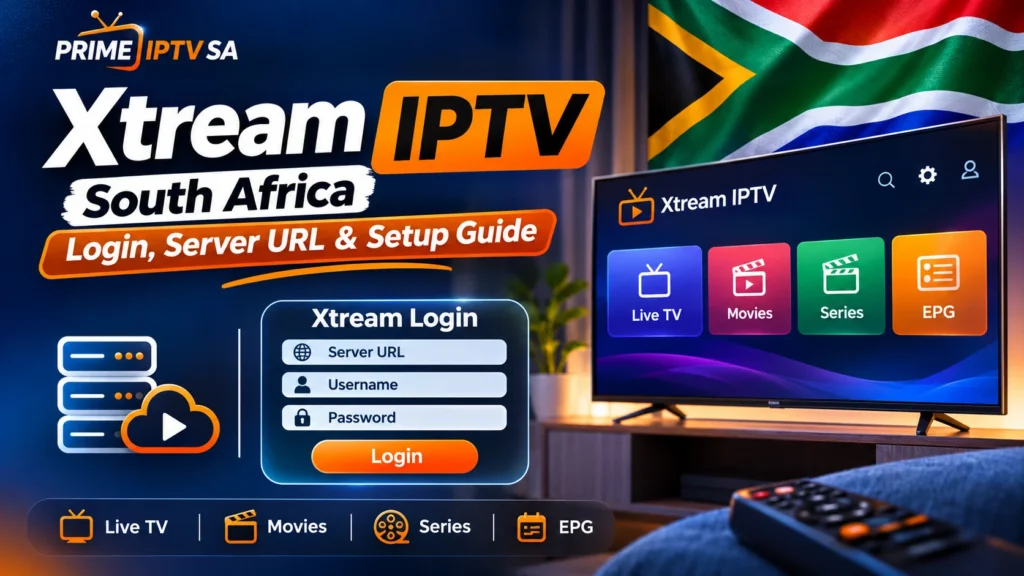
Xtream IPTV is a common login method used by compatible IPTV players to connect to an authorised streaming account using a server URL, username and password.
Instead of importing one long playlist URL, you normally enter three separate login details into a compatible player. The application can then organise the available live TV, movies, series and programme-guide information supported by the account.
For viewers in South Africa, Xtream login can be convenient because it works with many popular IPTV players across Smart TVs, Android TV devices, phones, tablets and computers.
This guide explains how Xtream IPTV login works, what each field means, how to set it up and how to solve the most common connection problems.
What Is Xtream IPTV?
When an IPTV player shows an option such as Xtream Codes API, Xtream Login or Xtream API, it is asking for account credentials supplied by your streaming service.
The login normally contains:
- Server URL
- Username
- Password
Some players also ask you to enter a playlist name. This is usually only a label that helps you identify the account inside the application.
What Does an Xtream IPTV Login Look Like?
A typical setup contains information similar to:
- Server URL: https://example-server.com:8080
- Username: Your account username
- Password: Your account password
- Playlist Name: Any name you choose
The exact server address and credentials are unique to the account.
Always copy the information exactly as supplied. A missing character, incorrect port or extra space can prevent the player from connecting.
Server URL Explained
The server URL tells the IPTV player where it should connect.
It may begin with:
- http://
- https://
Some server addresses also include a port number.
For example:
https://server.example.com:8080
If your login information includes a port, do not remove it.
It is also important not to replace http with https unless the service specifically supports it.
Username and Password
The username and password identify your account.
They should be entered exactly as provided.
When copying credentials, check for:
- Extra spaces
- Missing letters
- Uppercase and lowercase characters
- Numbers that look similar to letters
For example, the number 0 and letter O can easily be confused.
How to Set Up Xtream IPTV
The exact menu names vary between IPTV players, but the general setup is similar.
- Install a compatible IPTV player.
- Open the application.
- Select Add User, Add Playlist or a similar option.
- Choose Xtream Codes API or Xtream Login.
- Enter the Server URL.
- Enter your Username.
- Enter your Password.
- Add a playlist name if requested.
- Press Login or Add User.
- Wait for the content to load.
Loading can take a little longer the first time because the application may need to download categories, EPG information and other account data.
Which IPTV Players Support Xtream Login?
Many modern IPTV players support Xtream-style login.
Examples may include:
- IPTV Smarters-type players
- TiviMate
- IPTV Smart Player applications
- Compatible Android TV players
- Some Windows IPTV players
- Some mobile IPTV applications
Support varies by application and version, so always check the official app description before installation.
If you are still choosing a player, read our IPTV player guide.
Xtream IPTV on TiviMate
TiviMate is a popular option for Android TV and compatible streaming devices.
A typical setup process is:
- Open TiviMate.
- Select Add Playlist.
- Choose Xtream Codes.
- Enter the server address.
- Enter the username and password.
- Continue and allow the playlist to load.
Our TiviMate IPTV Player guide contains more detailed setup and troubleshooting information.
Xtream IPTV on IPTV Smart Player
Some IPTV Smart Player applications also support Xtream-compatible login.
If your version offers this option, select Xtream login and enter the three account details provided by your service.
Because several applications use similar names, confirm that your exact app supports Xtream before trying to add the account.
See our IPTV Smart Player guide for additional information.
Xtream IPTV vs M3U
Xtream login and M3U are two common ways of adding an IPTV account to a player.
Xtream IPTV Login
You normally enter:
- Server URL
- Username
- Password
A compatible player can then organise the account into different sections automatically.
M3U Playlist
With M3U, the account information is commonly provided as a longer playlist URL.
You paste that URL into a player that supports M3U playlists.
Read our IPTV M3U playlist guide if your device does not use Xtream login.
Is Xtream IPTV Better Than M3U?
There is no single best option for every device.
Xtream login is convenient when your player supports it because the application can organise different content categories from one account.
M3U can be useful when a player supports playlist URLs but does not provide an Xtream login option.
The best choice is normally the format that is officially supported by both your account and your preferred IPTV player.
Xtream IPTV Ready on Your Device?
Player Installed and Xtream Login Ready?
Once your player and internet connection are ready,
compare our IPTV plans →
and choose the subscription period that fits your setup.
Xtream IPTV Login Not Working
If your login fails, do not immediately reinstall the application.
Start by checking each login field carefully.
Confirm that:
- The Server URL is complete.
- The correct http:// or https:// format is being used.
- The port number is included if required.
- The Username is correct.
- The Password is correct.
- There are no spaces before or after the credentials.
- The account is still active.
Then restart the application and try again.
Authorization Failed or Invalid Details
An error such as Invalid Details, Authorization Failed or Login Failed often means that one of the account fields is incorrect or the account cannot currently authenticate.
Check the username and password first.
If you copied the information from WhatsApp or email, remove any spaces that may have been added accidentally.
Server URL Not Connecting
If the player cannot connect to the server, check the entire server URL.
A common mistake is entering only the domain while forgetting the required port.
For example, if the supplied address is:
http://example.com:8080
do not enter only:
http://example.com
Use the exact address supplied with your authorised account.
Xtream IPTV Channels Not Loading
If the login succeeds but the channel list does not appear, restart the application and refresh the playlist.
You should also confirm that the internet connection is working correctly.
If movies or series load but live TV does not, the issue may not necessarily be the login itself.
Test more than one category before changing account information.
Xtream IPTV Buffering
A successful Xtream login does not guarantee smooth playback if the network is unstable.
Buffering can be caused by:
- Weak Wi-Fi
- Internet congestion
- Router placement
- Large downloads on other devices
- Old streaming hardware
- Temporary stream-source problems
Run a speed test beside the television or streaming box rather than beside the router.
If you watch high-resolution streams, read our internet speed for 4K streaming guide.
Ethernet Can Improve Stability
If your streaming device has an Ethernet port, try connecting it directly to the router.
A wired connection can reduce problems caused by:
- Wi-Fi interference
- Distance from the router
- Walls
- Busy wireless networks
Our Ethernet vs Wi-Fi for IPTV guide explains when each connection is useful.
Xtream IPTV EPG Not Updating
The Electronic Programme Guide, or EPG, displays current and upcoming programme information when compatible data is available.
If your channels load but the guide is empty:
- Refresh the EPG inside the player.
- Restart the application.
- Check the date and time settings on the device.
- Allow the player enough time to download the guide.
- Check whether EPG information is available for the affected channels.
A missing EPG does not always mean that the Xtream login itself has failed.
Movies or Series Not Appearing
Some players separate account content into:
- Live TV
- Movies
- Series
If one section is missing, refresh the account or playlist first.
Also check whether your exact player supports those categories.
Can Xtream IPTV Work on a Smart TV?
Yes, provided the television supports a compatible IPTV player.
However, app availability varies between operating systems.
Examples include:
- Android TV
- Google TV
- Samsung Tizen
- LG webOS
- Hisense VIDAA
An app available on Android TV may not be available on Samsung, LG or VIDAA.
Always check your television’s app store first.
Xtream IPTV on Android TV
Android TV and Google TV provide a wide range of compatible media players.
Once a suitable player is installed, choose its Xtream login option and enter your credentials.
If you use an Android phone or tablet instead, see our IPTV for Android guide.
Xtream IPTV on Windows
Some Windows IPTV players support Xtream-compatible accounts.
This can be useful if you want to watch on a Windows 10 or Windows 11 computer.
The setup is generally similar:
- Install a compatible player.
- Select Xtream login.
- Enter the server URL.
- Enter the username.
- Enter the password.
- Allow the account to load.
A Windows computer can also help with troubleshooting. If an account works correctly on the PC but not on a Smart TV, the issue may be related to the television app or network configuration.
Protect Your Xtream IPTV Login Details
Your username and password provide access to your account, so treat them as private credentials.
Avoid posting screenshots that clearly display:
- Username
- Password
- Complete account URLs containing credentials
Only enter your details into applications you trust.
Should You Use a Free Xtream IPTV List?
Be careful with websites that publish random account credentials or premium channel lists for free.
These details may be expired, unreliable, unsafe or shared without authorisation.
Use only accounts and content that you are authorised to access.
Is Xtream IPTV Legal in South Africa?
Xtream is a technical login method. The login format itself does not determine whether particular content is legal.
The important issue is whether the streams being accessed are distributed and viewed with the necessary rights and permissions.
For more information, read our guide on IPTV legality in South Africa.
Xtream IPTV Troubleshooting Checklist
If you are having trouble, check these points in order:
- Confirm that your account is active.
- Check the Server URL.
- Check the Username.
- Check the Password.
- Remove accidental spaces.
- Restart the IPTV player.
- Restart the streaming device.
- Restart the router.
- Test another compatible player if necessary.
- Test Ethernet if Wi-Fi is unstable.
Changing one thing at a time makes it easier to identify the real cause of the problem.
Xtream IPTV Frequently Asked Questions
What information do I need for Xtream IPTV login?
You normally need a Server URL, Username and Password. Some applications also ask for a playlist name.
Is Xtream IPTV the same as M3U?
No. Xtream login generally uses separate server and account credentials, while M3U is commonly supplied as a playlist URL. Both can provide access to authorised streams when supported by the player.
Why does my Xtream IPTV login say invalid details?
The username, password or server URL may be incorrect, or the account may no longer be active. Check the credentials carefully before changing the app.
Can I use Xtream IPTV on TiviMate?
Compatible TiviMate versions support an Xtream Codes playlist option where you can enter the server address, username and password.
Can I use Xtream IPTV on a Smart TV?
Yes, if your television operating system provides a compatible IPTV player.
Does Xtream IPTV include channels?
No. Xtream login is a method used by compatible players to access information associated with an authorised account. The login format itself does not provide a subscription.
Why does Xtream IPTV keep buffering?
Possible causes include Wi-Fi quality, network congestion, device performance or the stream source. Test the connection before assuming the login method is responsible.
Final Thoughts
Xtream IPTV provides a simple way to add an authorised streaming account to compatible IPTV players using a Server URL, Username and Password.
The most important part of the setup is entering the credentials exactly as provided and using a player that supports Xtream login.
If the login works but playback is unstable, check your network, Wi-Fi, router and streaming device separately.
Xtream Login Ready to Go?
Once you have confirmed your player, device and internet connection,
view our IPTV plans →
and choose the option that fits your streaming setup.