
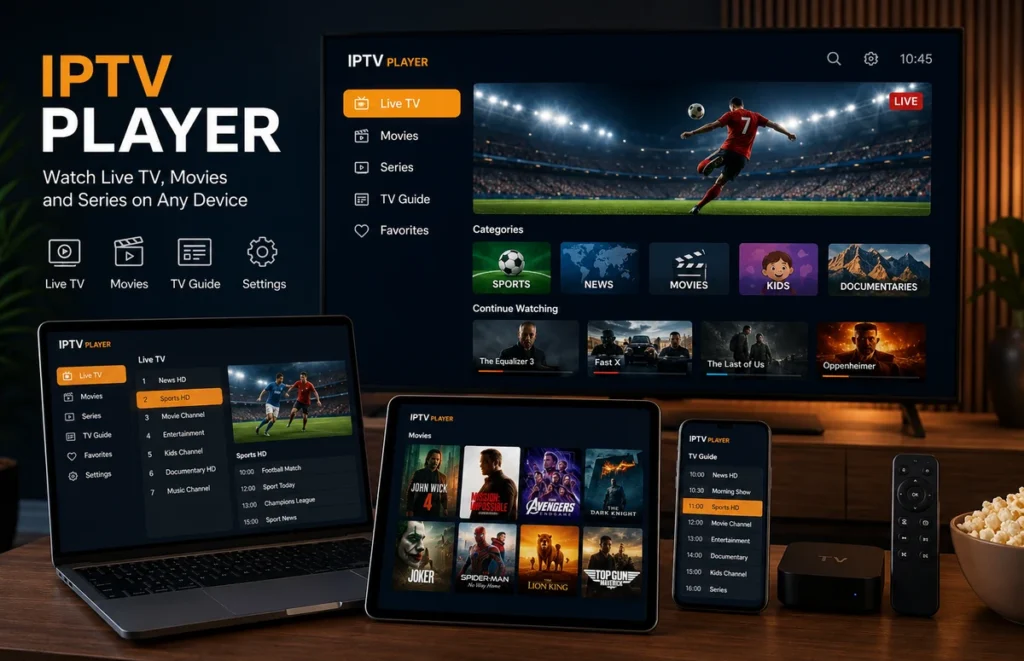
An IPTV player is an application that lets you organise and play compatible internet television streams on a Smart TV, streaming device, phone, tablet or computer. The player normally does not include television channels by itself. Instead, you add authorised login details or a playlist supplied by your service provider.
Choosing the right player can improve navigation, programme information, playback stability and device compatibility. This guide explains how an IPTV player works, which features matter and what to check before installing one.
What Is an IPTV Player?
An IPTV player is software designed to read compatible streaming information and display it in an organised interface. Depending on the application, it may support live television, video on demand, programme guides, favourites, search and multiple user profiles.
The player and the content provider are usually separate. Installing an app does not automatically give you access to premium channels, movies or sports. You normally need valid credentials or an authorised playlist from a provider.
This distinction is important when comparing apps. A polished interface does not determine whether the content being accessed is authorised.
How Does an IPTV Player Work?
After installation, the application asks you to add account information. Common login methods include an M3U playlist, Xtream-style credentials or another provider-supported format.
Once the information is accepted, the IPTV player loads categories such as live TV, movies, series or programme-guide data. The exact features depend on both the application and the information supplied by the provider.
For a broader explanation of internet television delivery, read our IPTV stream guide.
Features to Compare Before Choosing a Player
| Feature | Why it matters | What to look for |
|---|---|---|
| Device support | The app must work on your television or streaming device | Support for your exact operating system and model |
| Login formats | Providers may use different account methods | M3U, compatible account login or other supported formats |
| EPG support | Makes live channels easier to browse | Clear programme titles, times and categories |
| Favourites | Reduces time spent searching large lists | Easy favourite creation and management |
| Search | Helps locate channels or on-demand titles quickly | Fast search across available categories |
| Playback controls | Can improve compatibility with different streams | Audio, subtitle and player-engine options |
| Updates | Important for security and device compatibility | Recent updates from a recognised developer |
Which Devices Can Use an IPTV Player?
A compatible IPTV player may be available for several types of devices, but the same application is not always offered on every platform.
Common devices include:
- Samsung Smart TVs
- LG Smart TVs
- Android TV and Google TV devices
- Amazon Fire TV devices
- Android phones and tablets
- iPhone and iPad
- Windows computers
- macOS computers
Always check the app store on the exact device before choosing a subscription. Older Smart TVs may no longer support newer versions of some applications.
For detailed installation information, follow our IPTV setup guide.
IPTV Player vs IPTV Provider
Many beginners assume that downloading an IPTV player automatically includes a television package. In most cases, that is not how it works.
The player is the software interface. The provider supplies the authorised account or stream information used inside the software.
Think of it like a web browser and a website: installing the browser does not automatically create the content that appears inside it.
When comparing services, read our guide to comparing IPTV suppliers before choosing a longer subscription.
How to Set Up an IPTV Player
The exact steps vary by application, but the general process is similar.
- Open the official app store on your device.
- Search for a compatible player.
- Install the application.
- Open it and select the supported login method.
- Enter the account information supplied by your provider.
- Allow the categories and programme information to load.
- Test several authorised streams.
Double-check usernames and passwords before assuming the service is unavailable. A single missing character can cause login errors.
Should You Use a Free or Paid Player?
A free IPTV player may be enough for basic playback. Paid versions can add features such as multiple profiles, advanced EPG options, favourites synchronisation, parental controls or additional playback settings.
Do not pay only because an application promises better picture quality. Final video quality also depends on the stream source, internet connection and device.
Test the free version first when available, then decide whether the premium features are useful for your setup.
What About IPTV Smarters Pro?
IPTV Smarters-style applications are popular because they provide an organised interface for compatible account details. Like other players, the application itself and the streaming subscription should be considered separately.
Read our IPTV Smarters Pro APK setup and safety guide for more information about installation, login methods and common troubleshooting steps.
How to Improve Playback Quality
Even a good IPTV player can buffer when the network or device is struggling. Before changing applications, test the rest of your setup.
Try these steps:
- Restart the player and streaming device.
- Update the application.
- Close unused background apps.
- Use Ethernet when the television is close to the router.
- Move closer to the router when using Wi-Fi.
- Pause large household downloads.
- Test another authorised stream.
- Lower video quality temporarily.
Our Ethernet vs Wi-Fi guide explains which connection is more suitable for different home setups.
Why Does an IPTV Player Keep Crashing?
An application can crash because of low device memory, corrupted cache, an outdated operating system or software compatibility problems.
If your IPTV player repeatedly closes, restart the device and install available updates. Remove unused applications if storage is almost full.
When the problem started immediately after a player update, check the developer’s official support information before reinstalling the application.
Protect Your Login Details
Account credentials and playlist links can contain private information. Never publish them in screenshots, forums or social-media comments.
Download applications from official app stores or verified developer websites. Avoid modified apps from random download sites, particularly when they request unusual permissions.
Android users can review the official Google Play Protect guidance for information about application security checks.
Test Before Choosing a Long Subscription
A good IPTV player should be tested with the service and device you plan to use regularly. Check navigation, picture quality, audio, programme information and application stability.
Do not test only one stream. Open several categories and test again during normal evening viewing hours.
Our IPTV free trial in South Africa guide includes a complete checklist for evaluating a service before paying for a longer plan.
Is an IPTV Player Legal?
An IPTV media player is software and can have legitimate uses. The legal issue depends on the source of the content being accessed and whether the necessary distribution rights or permissions exist.
Installing an application does not automatically make every stream displayed through it authorised.
For more detail, read our guide answering is IPTV legal in South Africa?
Frequently Asked Questions
What is the best IPTV player?
The best option depends on your device, supported login format and the features you need. Compare compatibility, updates, EPG support, favourites and playback controls rather than choosing only by popularity.
Does an IPTV player include channels?
Usually no. The player is normally software used to access compatible account or playlist information supplied separately.
Can I use the same player on multiple devices?
Application availability and licensing vary. Your IPTV subscription may also have a separate simultaneous connection limit.
Why is my player buffering?
Buffering can come from Wi-Fi quality, internet congestion, device performance or the stream source. Test several streams and compare Ethernet with Wi-Fi before changing applications.
Can I install an IPTV player on a Smart TV?
Yes when a compatible application is available for your television’s operating system. App availability differs between Samsung, LG, Android TV and other platforms.
Final Thoughts
A reliable IPTV player should be compatible with your device, support your account format and receive regular updates. The right app can make navigation and playback easier, but it cannot compensate for a weak internet connection or unreliable stream source.
Test your device and player first, protect your login details and use authorised content. After confirming compatibility, you can compare IPTV plans in South Africa that match your setup and viewing needs.