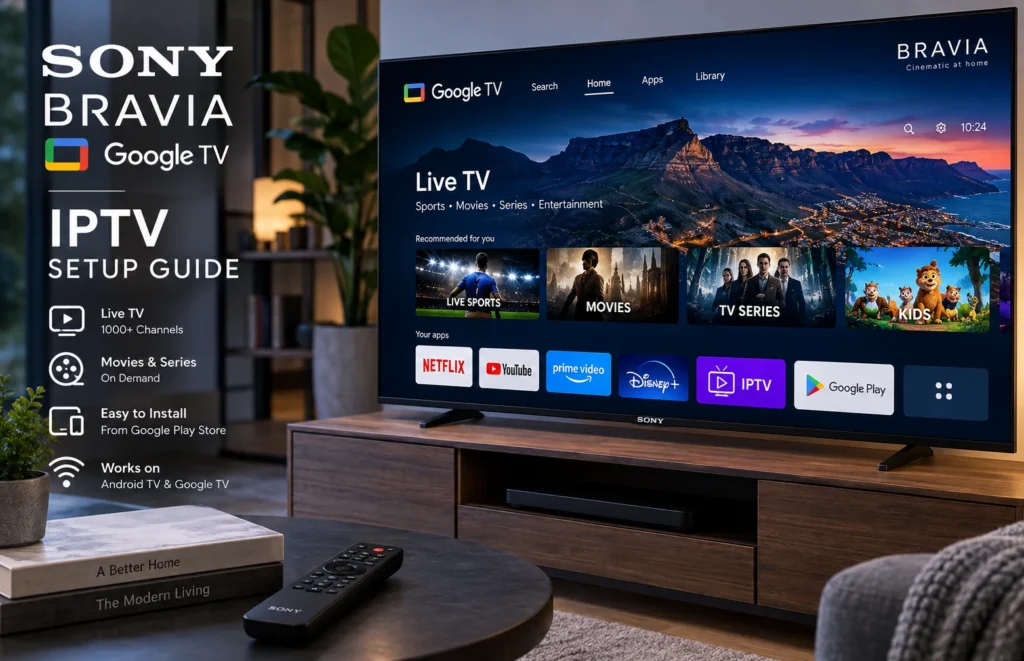
Setting up IPTV for Sony Smart TV is usually straightforward, especially on newer Sony Bravia models running Android TV or Google TV. You can install a compatible IPTV player directly from the Google Play Store, enter the login details supplied by your IPTV provider, and start streaming.
In this guide, we explain how to install IPTV on Sony Bravia TVs, how to configure an IPTV player, and what to do if the app is not loading, buffering or accepting your login details.
Important: IPTV technology itself can be used for legitimate streaming services. Always use IPTV applications with content and subscriptions you are legally authorised to access.
Does IPTV Work on Sony Smart TVs?
Yes. IPTV can work on many Sony Smart TVs, but the exact installation method depends on the operating system installed on your television.
Most modern Sony Bravia televisions use one of these platforms:
- Google TV – found on many newer Sony Bravia models.
- Android TV – common on Sony televisions released before the transition to Google TV.
- Older Sony Smart TV systems – some older models may not have access to modern IPTV applications.
If your Sony TV has the Google Play Store, installing an IPTV player is normally the easiest option.
What You Need Before Installing IPTV on Sony Bravia
Before starting the setup, make sure you have:
- A Sony Bravia TV connected to the internet.
- Access to the Google Play Store.
- A compatible IPTV player application.
- Your IPTV provider login details.
- An M3U playlist URL or Xtream Codes login if supported by your provider.
- A stable internet connection.
If you are still choosing an application, see our IPTV player guide for information about different player options.
How to Install IPTV on Sony Bravia Google TV
Step 1: Connect Your Sony TV to the Internet
Open the Sony TV settings and confirm that your television is connected through Wi-Fi or Ethernet.
For the most stable streaming experience, Ethernet can be useful when the television is located close to the router.
You can also read our comparison of Ethernet vs Wi-Fi for IPTV if you are unsure which connection to use.
Step 2: Open the Google Play Store
From the Sony Bravia home screen:
- Press the Home button on your remote.
- Select Apps.
- Open the Google Play Store or search for apps directly from the Apps section.
Step 3: Search for an IPTV Player
Search for a compatible IPTV player available for Android TV or Google TV.
Common IPTV player applications may support:
- Xtream Codes API
- M3U playlists
- Electronic Programme Guide (EPG)
- Live TV
- Movies and series
The availability of individual applications can vary depending on your TV model and Google Play Store region.
Step 4: Install the IPTV App
Select the IPTV application and choose Install.
After installation is complete, open the application from your Sony TV’s Apps menu.
How to Log In to IPTV on Sony Smart TV
The login process depends on the IPTV player and the information supplied by your service provider.
The two most common methods are Xtream Codes and M3U playlists.
Option 1: Login Using Xtream Codes
If your provider gives you Xtream Codes details, you will normally receive:
- Username
- Password
- Server or portal URL
Inside your IPTV application:
- Select Add User or Login with Xtream Codes.
- Enter a name for your playlist.
- Enter the username.
- Enter the password.
- Enter the server URL.
- Select Add User or Login.
The application should then load the channels and other authorised content associated with your subscription.
Option 2: Add an M3U Playlist
Some IPTV services provide an M3U playlist instead.
Choose the M3U playlist option inside your IPTV player and enter the URL supplied by your provider.
For more details, read our IPTV M3U playlist guide.
How to Set Up IPTV on Sony Android TV
The procedure for Sony Android TV is very similar to Google TV.
- Open the Google Play Store.
- Search for an IPTV player.
- Install the application.
- Open the app.
- Enter your provider login details or M3U playlist.
- Allow the application to load your authorised content.
Because both Android TV and Google TV are based on Google’s television platform, most compatible IPTV applications work in a similar way.
What If My Sony TV Does Not Have the Google Play Store?
Some older Sony televisions do not use Android TV or Google TV. These models may have a much smaller selection of applications.
If your television does not support a suitable IPTV player, an external streaming device may be an alternative.
Examples include:
- Android TV box
- Google TV streaming device
- Amazon Fire TV device
- Other compatible streaming boxes
You can learn more about external devices in our IPTV box guide.
Best Internet Speed for IPTV on Sony Bravia
Your internet connection can have a major effect on streaming quality.
As a general guideline:
- SD streaming: approximately 5–10 Mbps
- HD streaming: approximately 10–20 Mbps
- Full HD streaming: approximately 20–30 Mbps
- 4K streaming: around 25 Mbps or higher per active 4K stream
The required speed can increase when several people in the household are streaming, gaming or downloading at the same time.
For more detailed recommendations, see our guide to internet speed for 4K streaming.
IPTV Not Working on Sony Smart TV? Try These Fixes
1. Restart the Sony TV
Turn the television off completely, wait about 30 seconds and turn it back on.
A simple restart can clear temporary application or network problems.
2. Restart Your Router
If channels are taking too long to load, restart your internet router and reconnect the Sony TV.
3. Check Your Internet Connection
Open another streaming application such as YouTube to confirm that the television has internet access.
If other apps are also slow, the problem may be related to the network rather than the IPTV player.
4. Check Your IPTV Login Details
If you see a login error, verify that the username, password and server URL were entered correctly.
Pay particular attention to:
- Capital letters
- Numbers
- Extra spaces
- The complete server URL
5. Update the IPTV Application
Open the Google Play Store and check whether an update is available for your IPTV player.
Older app versions can sometimes create compatibility problems after a Sony TV software update.
6. Clear the App Cache
On many Sony Android TV and Google TV models you can go to:
Settings → Apps → See all apps → IPTV Player → Clear Cache
Then reopen the application.
7. Try Ethernet Instead of Wi-Fi
If the television frequently buffers over Wi-Fi, connecting it directly to your router using an Ethernet cable may provide a more stable connection.
Why IPTV Buffers on Sony Bravia
Buffering does not always mean there is a problem with the television.
Possible causes include:
- Slow internet speed
- Weak Wi-Fi signal
- Network congestion
- Too many devices using the connection
- An outdated IPTV application
- Temporary server problems
- High-resolution streams requiring more bandwidth
Run an internet speed test from a device connected to the same network to determine whether your connection is fast enough.
Can You Watch 4K IPTV on Sony Bravia?
Compatible Sony Bravia 4K televisions can display 4K streams when the application, authorised IPTV source and internet connection all support that resolution.
For reliable 4K streaming, a stable connection is generally more important than simply having a high advertised maximum internet speed.
Other devices using your network can also reduce the bandwidth available to your Sony TV.
Should You Use Wi-Fi or Ethernet?
Wi-Fi is convenient and works well when your Sony television has a strong signal.
Ethernet may be preferable when:
- The router is close to the television.
- Your Wi-Fi signal is unstable.
- You regularly watch high-bitrate or 4K streams.
- Several other devices are using Wi-Fi simultaneously.
Frequently Asked Questions
Can I install IPTV directly on a Sony Bravia TV?
Yes. If your Sony Bravia uses Android TV or Google TV and has access to the Google Play Store, you can normally install a compatible IPTV player directly on the television.
Which IPTV app works on Sony Smart TV?
Sony Android TV and Google TV models support various IPTV player applications available through Google Play. Compatibility can vary by television model and region, so check the application’s listing before installing it.
Does IPTV work on Sony Google TV?
Yes. Google TV supports compatible streaming applications from the Google Play Store, making IPTV setup similar to other Android-based televisions.
Why is IPTV freezing on my Sony Bravia?
Freezing may be caused by an unstable internet connection, weak Wi-Fi, an outdated application, network congestion or a problem with the content source. Restarting your router and TV and testing your connection can help identify the cause.
Can I use IPTV without an Android box on Sony TV?
Yes. If the Sony television already runs Android TV or Google TV and supports an IPTV player, an additional Android box is usually unnecessary.
Can I test IPTV before choosing a subscription?
If a provider offers a legitimate trial service, testing it on your Sony TV can help you check application compatibility and connection performance. You can read our IPTV free trial guide for South Africa for more information.
Final Thoughts
Installing IPTV for Sony Smart TV is easiest on Sony Bravia televisions running Android TV or Google TV. In most cases, you simply install a compatible IPTV player from Google Play, enter the credentials supplied by your provider and make sure your internet connection is stable.
For the best experience, keep your Sony TV and IPTV player updated and consider Ethernet if your Wi-Fi connection frequently causes buffering.
If you want to compare available options for your device, you can also view our IPTV plans and choose the setup that best suits your Sony Bravia TV.