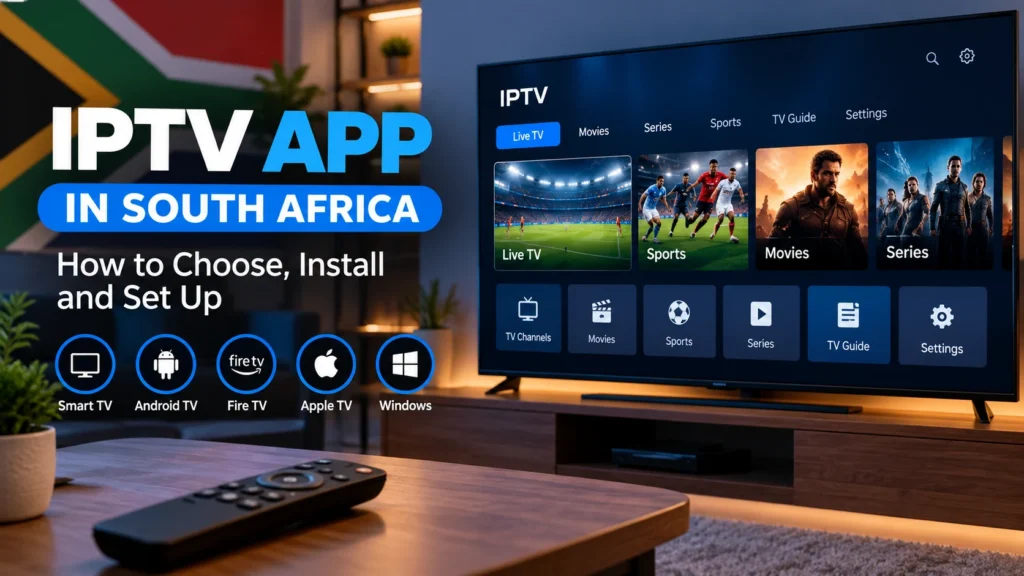
IPTV App in South Africa: How to Choose, Install and Set Up
An IPTV app is one of the easiest ways to organise and play internet television on a Smart TV, streaming device, smartphone, tablet or computer. However, choosing the right application is important because device compatibility, playlist support and performance can vary between players.
This guide explains how an IPTV app works, what to look for before installing one, how to configure your authorised subscription details and how to solve common setup problems in South Africa.
What Is an IPTV App?
An IPTV app is a media player designed to receive and display television or video streams delivered through an internet connection.
It is important to understand that an IPTV player does not necessarily provide television channels itself. In many cases, the application simply provides the interface used to load login details, an M3U playlist or another compatible source supplied by an authorised service.
This means the IPTV app and the content provider are two separate parts of the streaming setup.
How Does an IPTV App Work?
The process is relatively simple. Your internet connection delivers the stream to your device, while the IPTV application organises and displays the available content.
A typical setup includes:
- A stable internet connection
- A compatible Smart TV or streaming device
- An IPTV player or application
- Your authorised subscription or playlist details
- A properly configured home network
If one of these components has a problem, playback may fail even when the other parts of the setup are working correctly.
Which Devices Support IPTV Apps?
IPTV applications are available for many popular devices, although the exact apps available depend on the operating system and region.
Samsung Smart TV
Samsung televisions use the Tizen operating system. Compatible media players can normally be downloaded through Samsung’s official app store.
LG Smart TV
Most modern LG televisions use webOS. Available IPTV players can be found through the LG Content Store, depending on the television model and region.
Android TV and Google TV
Android TV and Google TV devices provide access to a wide selection of media players through the Google Play Store.
This includes many televisions as well as dedicated Android streaming boxes.
Amazon Fire TV
Fire TV devices support applications from the Amazon Appstore. App availability may vary depending on your region and device generation.
Apple TV
Apple TV users can install compatible IPTV players from the Apple App Store.
If you use an Apple device, read our IPTV for Apple TV setup guide for more detailed instructions.
Windows Computers
A Windows computer can also be used for IPTV playback through compatible desktop applications.
See our Windows IPTV Player guide for additional setup information.
How to Choose an IPTV App
Do not choose an application only because it appears first in an app store. Check whether it supports your device and the login format supplied by your authorised streaming service.
Important features to consider include:
- Compatibility with your device
- M3U playlist support
- Xtream-compatible login support where applicable
- Electronic programme guide support
- Live TV and video-on-demand organisation
- Subtitle and audio-track controls
- Favourites and search functions
- Regular software updates
- A simple interface suitable for your television remote
Found the Right IPTV App for Your Device?
Once your preferred IPTV app is installed and working correctly,
compare our IPTV plans →
and choose the option that best matches your device and viewing needs.
IPTV App vs IPTV Service: What Is the Difference?
This is an important distinction for beginners.
An IPTV app is normally the software installed on your device. An IPTV service or authorised content source provides the account, playlist or streaming information that the player uses.
Installing a player therefore does not automatically give you access to television channels or premium content.
Before selecting a service, you can read our guide to choosing IPTV suppliers in South Africa.
How to Install an IPTV App on a Smart TV
The exact installation process depends on your television, but the general steps are similar.
- Connect the Smart TV to the internet.
- Open the television’s official application store.
- Search for a compatible IPTV or media player.
- Check the application information and device compatibility.
- Install the application.
- Open it after installation.
- Add your authorised login or playlist information.
- Allow the application to load the available categories.
- Test several streams before completing your setup.
Menu names can differ between television brands and operating-system versions.
How to Add Your IPTV Login Details
The information required depends on the player and service you use.
Common setup methods include a username and password with a server address, an M3U playlist URL or another supported account format.
Enter the information exactly as supplied. An additional space or incorrect character can prevent the application from connecting.
If your service uses an M3U playlist, our IPTV M3U Playlist guide explains how this format works.
What Internet Speed Does an IPTV App Need?
Installing the right application does not guarantee smooth playback. Your internet connection and home network also have a major effect on streaming quality.
Higher video resolutions generally require more bandwidth, while several devices using the connection simultaneously can reduce the capacity available to your television.
Connection stability is particularly important. A fast connection with unstable Wi-Fi can perform worse than a slower but consistent connection.
For a detailed comparison, see our Best Internet for IPTV in South Africa guide.
Wi-Fi or Ethernet for an IPTV App?
Both can work, but Ethernet provides a direct wired connection between your router and streaming device.
If your Smart TV is permanently located close to the router, Ethernet is worth testing because it reduces problems caused by distance, walls and wireless interference.
Wi-Fi remains convenient when running a cable is impractical. A strong 5 GHz Wi-Fi connection can work well when the television is reasonably close to the router.
Read our Ethernet vs Wi-Fi for IPTV comparison for more information.
Why Is My IPTV App Buffering?
Buffering does not always mean that the application is faulty.
Possible causes include:
- Weak Wi-Fi signal
- Internet congestion
- Other devices downloading or streaming
- Limited device memory
- An outdated application
- Outdated television software
- Temporary problems with the streaming source
Start by restarting the application and router. Then test another stream and, if possible, connect the device through Ethernet.
What If the IPTV App Keeps Crashing?
If the application closes unexpectedly, check for an app update and make sure your Smart TV firmware is current.
You should also check available storage and close unnecessary applications running in the background.
We have a separate IPTV app crashing troubleshooting guide with a step-by-step diagnostic process.
Should You Test an IPTV App Before Choosing a Subscription?
Yes. Testing the complete setup on the device you actually intend to use can reveal compatibility or network problems before choosing a longer subscription.
During a test, check:
- How quickly the application opens
- Navigation with your remote control
- Picture and audio stability
- Channel or category loading
- Electronic programme guide performance
- Wi-Fi or Ethernet stability
Prime IPTV SA provides additional information about device compatibility, setup and available options for South African viewers. Visit IPTV South Africa or review the available IPTV plans after confirming that your device and connection are suitable.
Is Using an IPTV App Legal in South Africa?
An IPTV application is a media player, and the technology itself can be used for legitimate purposes. What matters is the source of the content being accessed and whether the required rights or permissions exist.
Use applications from trusted sources and access only television, video or other media that you are legally authorised to use.
For more information, read our guide to IPTV legality in South Africa.
Frequently Asked Questions
What is the best IPTV app?
There is no single application that is best for every device. The right option depends on your television or streaming device, operating system, preferred interface and the account or playlist format you are authorised to use.
Can I install an IPTV app on a Smart TV?
Many Smart TVs support compatible media players through their official application stores. Availability depends on the television brand, model, operating system and region.
Does an IPTV app include channels?
Not necessarily. Many IPTV applications are players only and require you to add your own authorised subscription, playlist or content source.
Can I use the same IPTV app on my phone and television?
Some players support several platforms, while others are designed for specific operating systems. Check the developer’s supported-device information before installing the application.
Why does my IPTV app freeze even with fast internet?
Internet speed is only one factor. Weak Wi-Fi, network congestion, device performance, application problems or the streaming source can also cause freezing.
Final Thoughts
Choosing the right IPTV app starts with your device. Check compatibility first, install applications from trusted sources and make sure the player supports the login or playlist format you need.
For viewers in South Africa, it is also worth testing the complete setup on your normal home network before selecting a longer subscription. A compatible player, stable internet connection and properly configured device can make a significant difference to everyday streaming performance.
IPTV App Ready? Choose the Plan That Fits Your Setup
If your IPTV app, Smart TV or streaming device and internet connection are ready,
view our IPTV plans →
and choose the option that works best for your setup.