
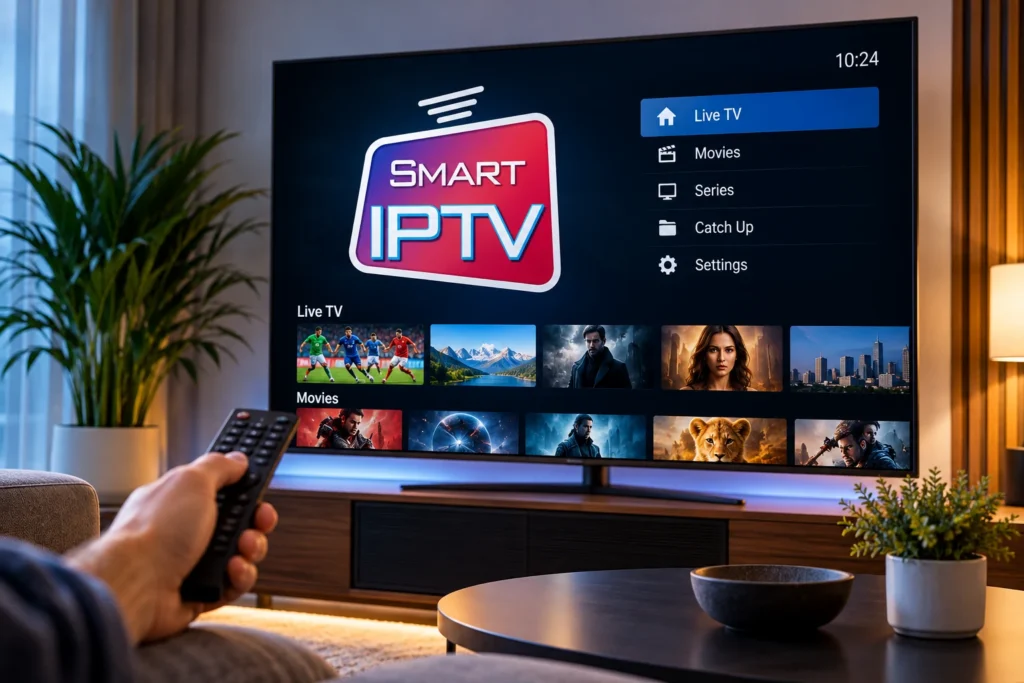
Smart IPTV is a media player used on compatible televisions and streaming devices to organise and play authorised IPTV playlists. The application itself does not automatically include television channels, movies or a subscription.
For South African viewers, a good setup depends on several things working together: the correct player, a compatible device, a stable internet connection and valid playlist information from an authorised service.
This guide explains how Smart IPTV works, which devices can use it, how to add a playlist and what to check when the application is not loading or playback keeps buffering.
What Is Smart IPTV?
Smart IPTV is an application designed to play IPTV content supplied separately by the user or an authorised service.
The application should therefore be treated as the player rather than the television subscription itself.
A typical setup requires:
- A compatible Smart TV or streaming device
- A stable internet connection
- The Smart IPTV application
- An authorised M3U playlist or compatible playlist source
According to the official Smart IPTV website, no channels are included with the application. You can check the official Smart IPTV website for current application information.
Which Devices Support Smart IPTV?
Smart IPTV has been available for several television and streaming platforms, although availability can vary by device model, operating system and app store region.
Supported platforms have included:
- LG Smart TVs
- Samsung Smart TVs
- Android TV
- Google TV
- VIDAA devices
- Compatible MAG devices
Before installing anything, check your device’s official application store and confirm that the application is available for your model.
Smart IPTV vs an IPTV Subscription
This is an important distinction for beginners.
Smart IPTV is the player. A separate IPTV service supplies the authorised playlist or account information used inside the application.
Installing the app alone does not automatically give you access to live television, movies or paid channels.
How to Install Smart IPTV
The installation process depends on your television or streaming device.
On a Smart TV
- Connect the television to the internet.
- Open the official app store.
- Search for Smart IPTV.
- Check the application and developer information.
- Install the application if it is available.
- Open it after installation.
If the app is not available in your television’s store, avoid downloading random files from unknown websites. Application availability can change depending on the model and region.
On Android TV or Google TV
Search for the application using the official store available on your device. Always verify the application details before installation.
How to Add a Playlist to Smart IPTV
Smart IPTV commonly uses a device identifier together with its playlist-management system.
When the application opens for the first time, it may display a device ID, TV ID or MAC-related identifier depending on the platform.
The general process is:
- Open Smart IPTV on your device.
- Note the device identifier shown by the application.
- Open the official playlist-management page in your web browser.
- Enter the identifier requested by the application.
- Add the authorised playlist information supplied by your service.
- Save the changes.
- Restart or reload the application.
Enter playlist information exactly as supplied. Missing characters, spaces or an incomplete URL can prevent the list from loading.
What Is an M3U Playlist?
An M3U playlist is a file or URL format that can contain information used by compatible media players.
If your service provides an authorised M3U URL, Smart IPTV can use that information to organise the available streams.
For a more detailed explanation, read our IPTV M3U Playlist Guide.
How to Reload Your Playlist
If you update your playlist but do not see the changes immediately, restart the application or use the reload option available inside the player.
Some versions of Smart IPTV include playlist reload settings that control how often a URL-based playlist is refreshed.
If a playlist still appears outdated:
- Restart the app.
- Restart the television.
- Confirm that the playlist URL is still active.
- Check that the correct device identifier was used.
How to Organise Channels and Favourites
A good IPTV player should make navigation easier, especially when a playlist contains many categories.
Smart IPTV includes features for organising and navigating available content, such as favourites, groups and programme information where supported.
Adding frequently watched channels to favourites can reduce the amount of time spent scrolling through large lists.
Smart IPTV Playlist Not Loading
If the application opens but the playlist does not load, start with the basic checks before reinstalling anything.
Check:
- The playlist URL is complete.
- There are no extra spaces.
- The device identifier is correct.
- Your internet connection is working.
- The authorised playlist is still active.
After making changes, restart the application and allow it enough time to reload the playlist.
Smart IPTV Keeps Buffering
Buffering is not always caused by the application itself.
Your home network can affect playback just as much as the player.
Common causes include:
- Weak Wi-Fi signal
- Router located too far from the television
- Several devices downloading at the same time
- Network congestion
- Older Smart TV hardware
- Temporary issues with the streaming source
Try Ethernet Before Changing the App
If your television is close to the router, test an Ethernet connection before assuming that Smart IPTV is responsible for buffering.
If playback becomes more stable with Ethernet, Wi-Fi may be the real problem.
Read our Ethernet vs Wi-Fi for IPTV guide for more information.
Check Your Router Placement
A fast internet package can still perform poorly if the television receives a weak wireless signal.
Try to keep the router:
- In an open location
- Away from large metal objects
- Outside closed cabinets
- Reasonably close to the main streaming device
For practical advice, see our Wi-Fi Router Placement for IPTV guide.
How Much Internet Speed Do You Need?
Streaming requirements depend on picture quality and the number of devices using the connection.
As a practical starting point:
- SD requires relatively little bandwidth.
- HD needs a stable connection with additional capacity.
- 4K requires significantly more bandwidth and good network stability.
For more detail, read our Internet Speed for 4K Streaming guide.
Smart IPTV App Freezing or Closing
If the application freezes or closes unexpectedly, try the following:
- Restart the television.
- Restart the router.
- Check for television firmware updates.
- Check whether a newer app version is available.
- Free storage space on the device.
- Test another stream.
If several apps are slow or unstable, the issue may be related to the television rather than Smart IPTV itself.
Playlist Loads but Channels Do Not Play
If the playlist appears correctly but playback does not start, the problem may be related to the individual stream, internet connection or device compatibility.
Try several different streams before troubleshooting the entire application.
If only one item fails while others work correctly, the issue is less likely to be caused by your television or network.
Should You Use Wi-Fi or Mobile Data?
For Smart TVs, a home fibre, LTE or 5G connection is normally more practical than relying on mobile hotspot data.
Video streaming can consume significant data, especially at higher resolutions.
If you use a capped mobile connection, monitor your data usage carefully.
Is Smart IPTV Safe?
The safest approach is to obtain applications from official or trusted sources and avoid modified APK files from unknown websites.
Do not publicly share playlist URLs, usernames, passwords or other account information.
If your playlist contains private access information, treat the URL like a password.
Is Smart IPTV Legal in South Africa?
Smart IPTV is a media player. The legal question generally depends on the content being accessed and whether the necessary rights and permissions exist.
Use only authorised content sources and legitimate services.
For more information, read our Is IPTV Legal in South Africa? guide.
Smart IPTV Alternatives
No single player is ideal for every device.
If Smart IPTV is not available or does not work well on your television, another compatible IPTV player may be more suitable.
When comparing players, consider:
- Device compatibility
- Playlist support
- Remote-control navigation
- EPG support
- Favourites and categories
- Application stability
Our IPTV Player Guide explains how to compare different player options.
Frequently Asked Questions
Does Smart IPTV include channels?
No. Smart IPTV is a media player and does not automatically include television channels or a subscription.
Can I use Smart IPTV in South Africa?
The application can be used on compatible devices where it is available. App-store availability can vary by television model, platform and region.
Can I upload an M3U playlist?
Smart IPTV supports playlist-based configuration. Use only playlist information that you are authorised to access.
Why is my playlist not loading?
Common causes include an incorrect playlist URL, an inactive playlist, a wrong device identifier or a network problem.
Why does Smart IPTV buffer?
Buffering can be caused by weak Wi-Fi, internet congestion, other devices using bandwidth, older television hardware or the streaming source.
Is Smart IPTV the same as an IPTV provider?
No. Smart IPTV is the player. The IPTV provider or authorised service supplies the playlist or account information.
Smart IPTV Setup Ready? Choose Your IPTV Plan
Once your Smart TV, player and internet connection are ready, compare the available IPTV plans and choose the subscription that best matches your device and viewing habits.
Final Thoughts
Installing IPTV for Sony Smart TV is straightforward on compatible Sony Bravia televisions running Android TV or Google TV. The main things to check are the IPTV player, your login details and the stability of your internet connection.
For smoother playback, keep your Sony TV and IPTV app updated, use a strong Wi-Fi signal and test Ethernet if buffering continues.
Ready to choose a plan for your Sony TV? Compare our IPTV plans → and choose the option that best matches your device, connection and viewing needs.